

Hey SimplyPrint'ers! 👋
It's been a busy couple of weeks. This release is all about making the platform yours: a brand-new custom dashboard builder, a proper public launch of workflow automation (Zapier, n8n, Activepieces and AI assistants via MCP), and a much more native Snapmaker U1 integration. There's a big pile of smaller improvements and fixes underneath too.
Let's dig in.
Quick version
Short on time? Here's what's new:
- ✨ Custom dashboards - build your own live panel from cards (printer status, queue, timeline, statistics, maintenance and more), drag them onto a grid, and share the result with your team.
- ✨ Workflow automation is public - connect your fleet to Zapier, n8n and Activepieces, or let ChatGPT, Claude and Gemini run it in plain English through our MCP server. Included from the Pro plan, no extra fee.
- ✨ Snapmaker U1 now connects through the SimplyPrint Client for a far more native integration, including multi-material sync and per-tool color mapping like you already have for the Bambu Lab AMS
- ✨ Set temperatures over the API, multiple working-hour ranges per day, TigerTag NFC filament, new BIQU CryoGrip build plates, email columns in Print History exports, and more.
- 🐛 A batch of fixes across the queue, multi-material printing, Bambu spools, AutoPrint and school (UniLogin) sign-in.
Nothing on the Free plan changed. Everything you can do today, you can keep doing tomorrow.
Custom dashboards: build your own view of your operation
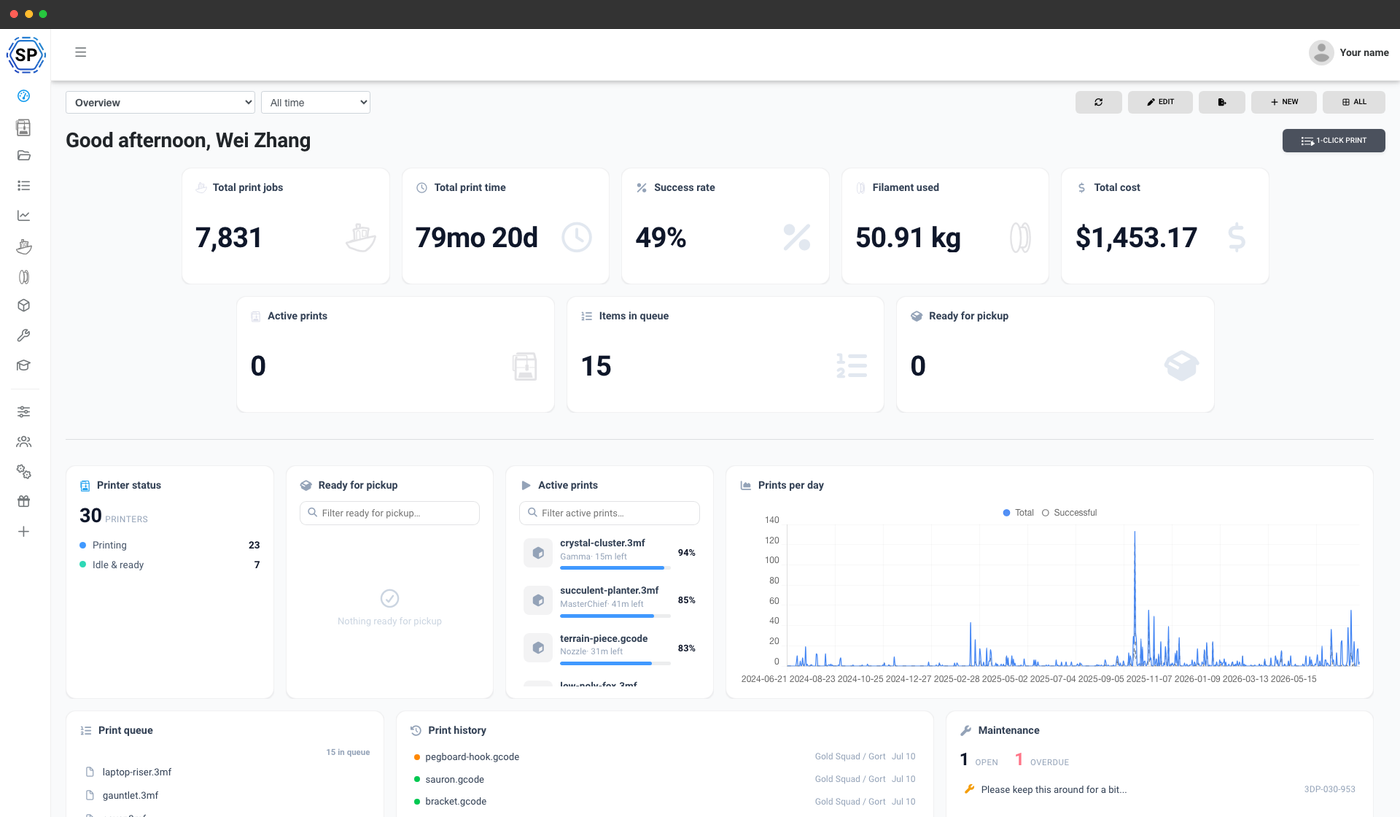
This is the big one. A custom dashboard is a live page you build yourself from cards, then share with your account or a specific group. Instead of clicking between five different pages, everyone opens one screen that shows exactly what matters to them.
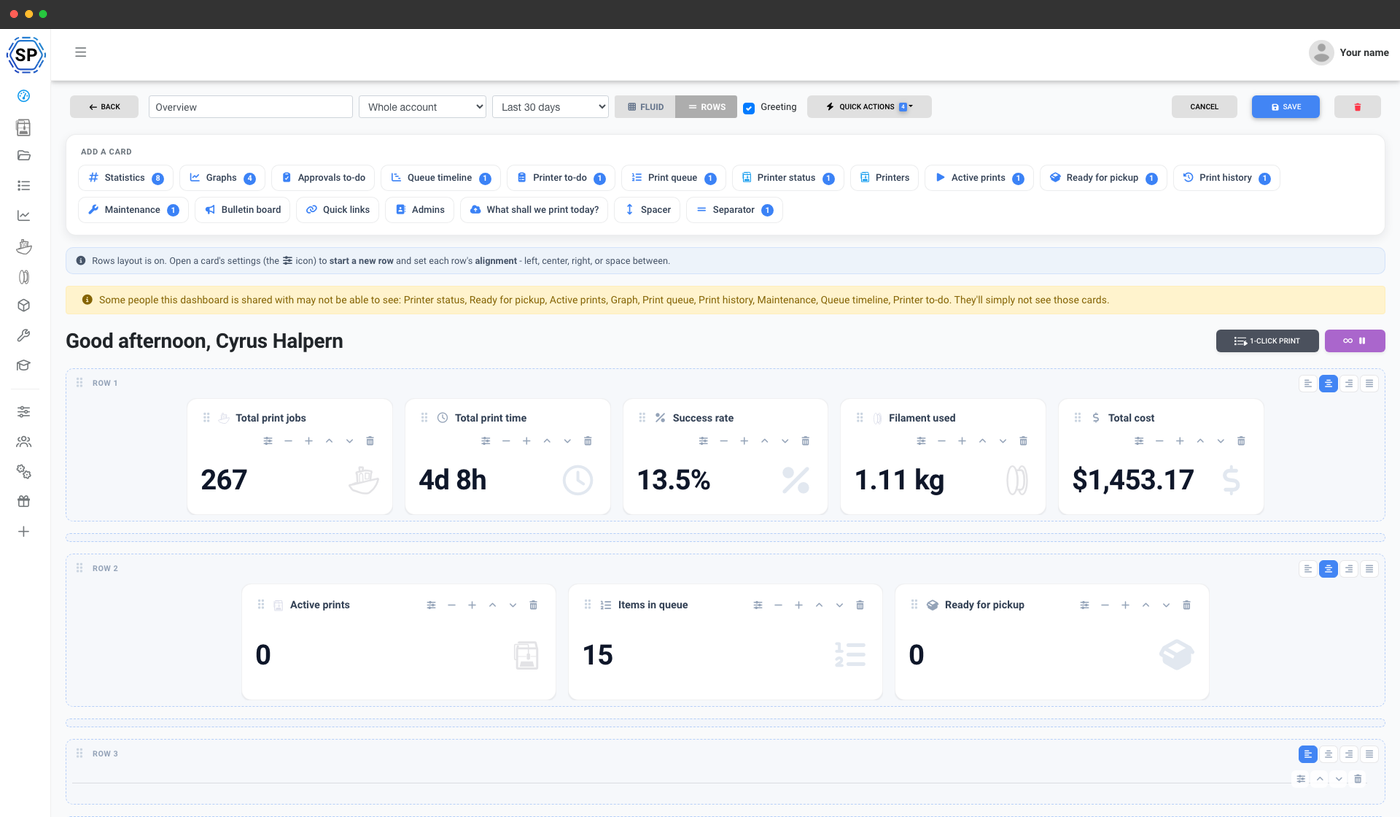
Open the builder, pick the cards you want, and drag them onto a grid. Resize a card to make the queue bigger and the stats smaller, drop in a spacer or separator to group things, and reorder everything until the layout matches how your team actually works. You can save multiple dashboards and switch between them, and there's JSON import/export so you can move a layout between accounts.
The card catalog covers pretty much every part of the platform:
- Printer status and a live printer embed, so a wall display shows what every machine is doing right now
- Active prints and ready for pickup, to see what's running and what's finished
- Print queue as a list or full table, plus the queue timeline
- Statistics number tiles (total prints, print time, success rate, filament used) and graph cards (prints per day, job outcomes, per-printer breakdowns)
- Maintenance, so upcoming and overdue tasks surface next to your printers
- Print history of recent jobs
- Quick links, a bulletin board, an admin directory and a file upload zone for a self-serve landing page

Each card can be scoped to your whole account, a selection of printers or groups, or the viewing user, so the same dashboard shows the right slice to whoever opens it. You can keep a dashboard private, publish it to your whole account, or share it with specific user groups. On Enterprise you can even share with named individuals.
Custom dashboards are part of the Print Farm plan and are inherited by School and Enterprise. Print Farm includes 3 dashboards, School includes 5, and Enterprise removes the limit entirely. On the School plan, the reserved teacher and student dashboards are separate and don't count towards your limit. On plans without the feature, the Dashboards page still opens as a locked demo with sample data, so you can preview what you'd get.
While we were at it, we also added sidebar customization: reorder or hide items in the panel sidebar for your whole account and set a default start page, so the panel opens on the page your team cares about most. Between dashboards and the sidebar, you can shape SimplyPrint around how you run your printers.
Automate your farm: Zapier, n8n, Activepieces and AI (MCP)
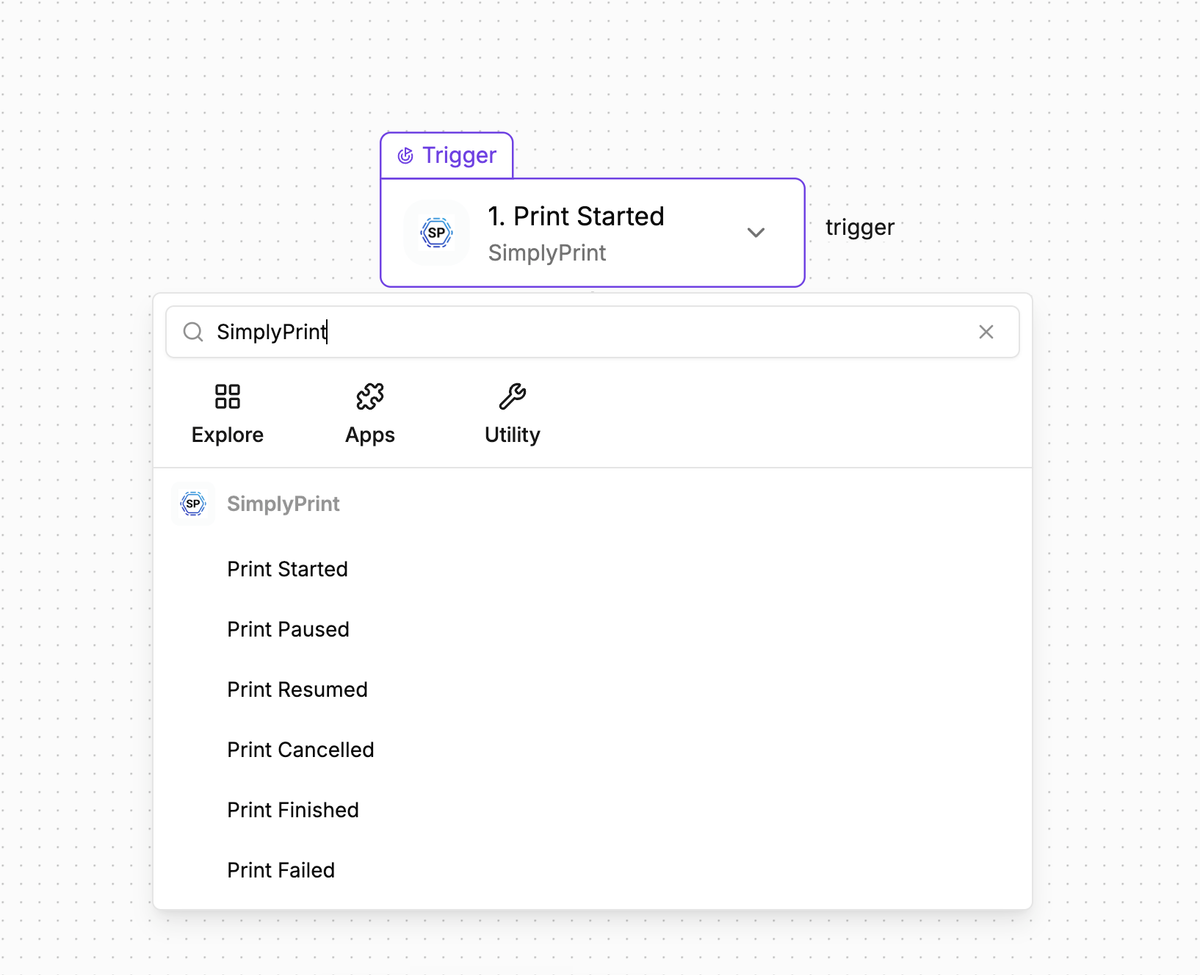
When a print finishes, something else usually has to happen: a message in the team chat, a row in a spreadsheet, an order marked as fulfilled, the next job queued. We've now publicly launched workflow automation so those steps run themselves, with no code required.
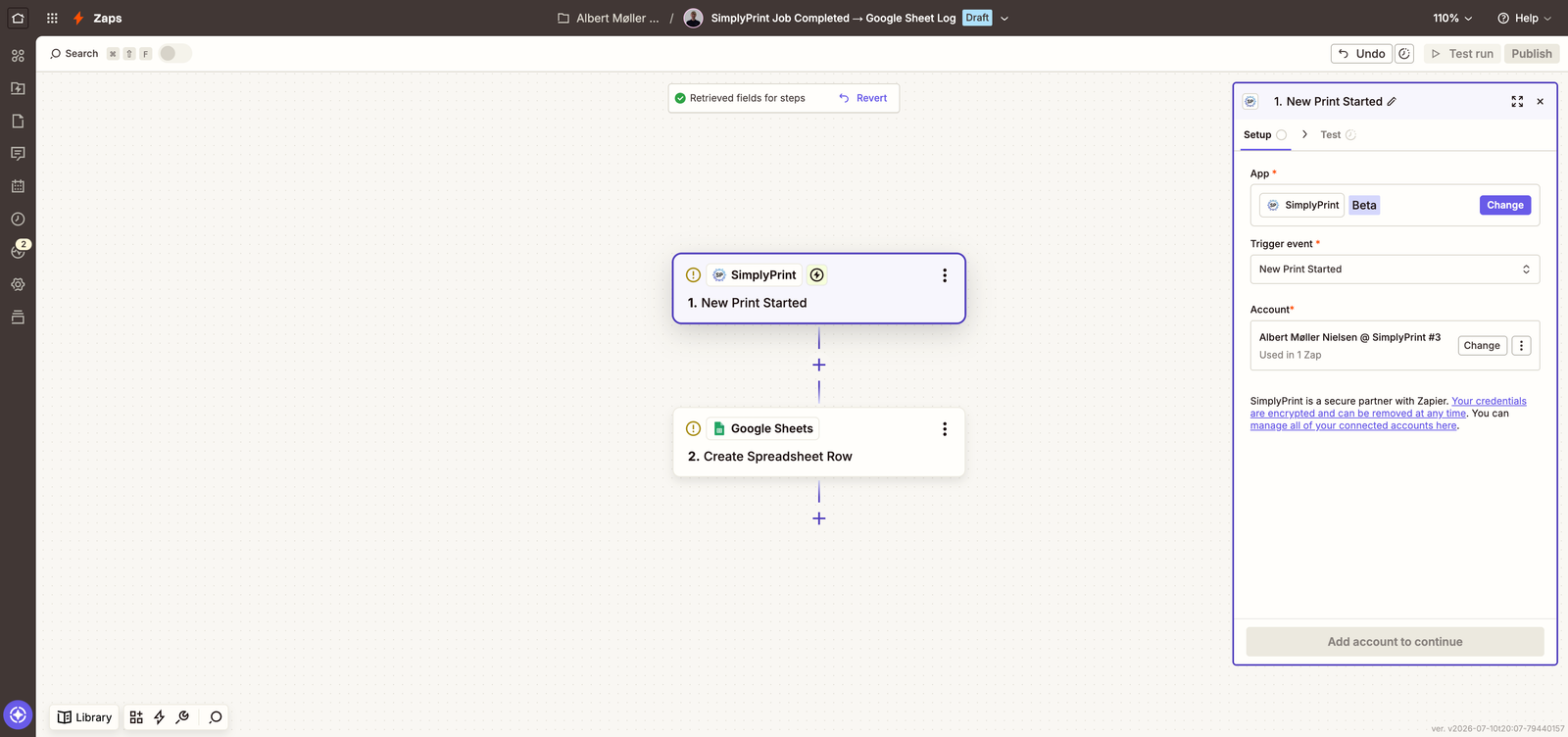
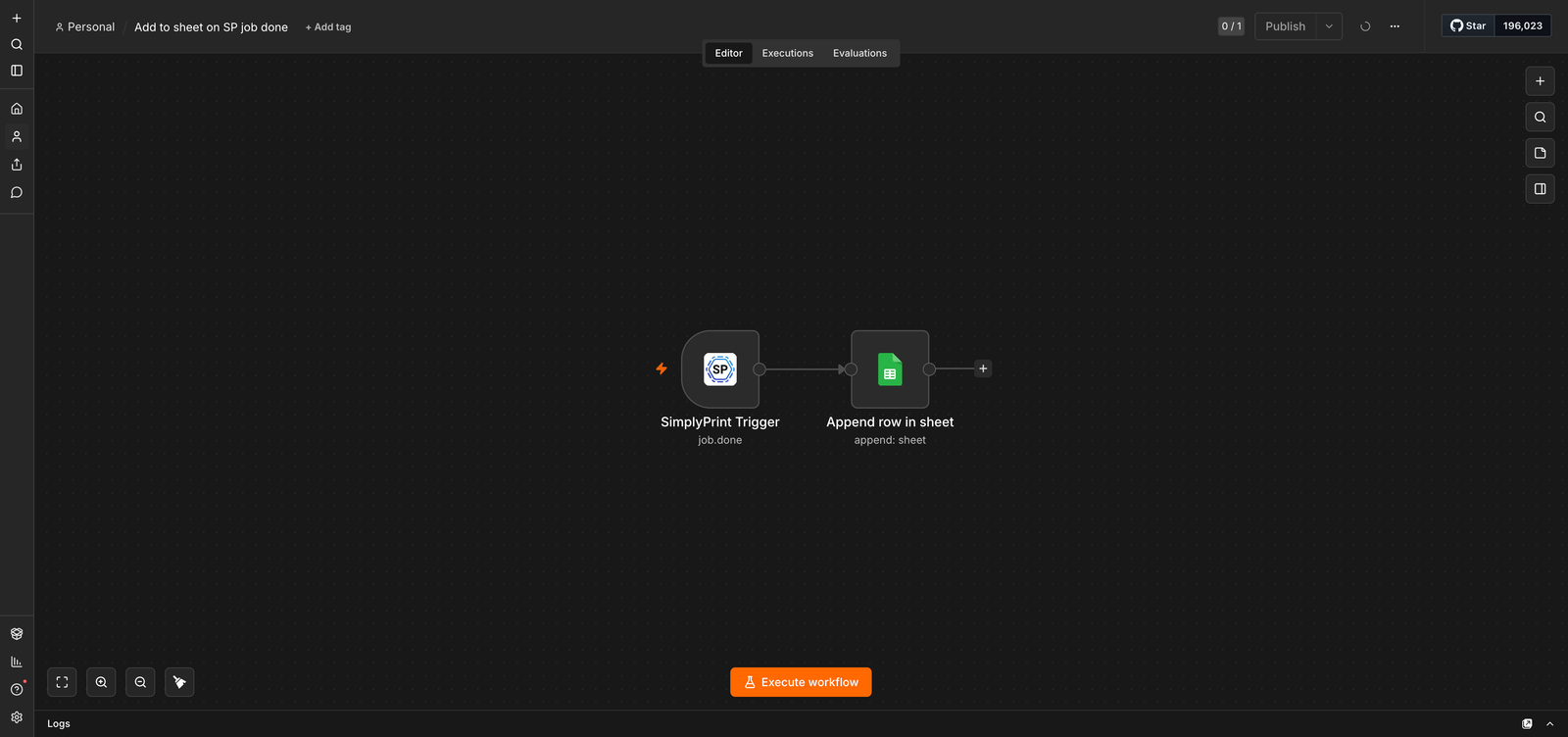
Every automation follows the same shape: a trigger fires in SimplyPrint (print started, finished or failed, an AI failure detected, a queue item added), and an action runs somewhere else, or the other way around, where an event in your other tools queues a job or starts a print here. You build the recipe once, in the platform you prefer, and it runs every time. A few things people are already wiring up:
- A print finishes and the team channel gets a message while the job logs itself to Google Sheets
- An order lands in your storefront and drops straight into the print queue
- A print fails at 2 AM, a ticket opens and the operator gets pinged
- Every morning at 8, yesterday's stats post themselves as a digest
Pick the platform that fits how your team works. They all get the same SimplyPrint triggers and actions, and each connects to your account over OAuth2 in a couple of clicks:
- Zapier for the biggest catalog of connected apps with the least setup
- n8n for node-based workflows you can self-host, keeping automation data on your own infrastructure
- Activepieces for open source and self-hosting with the same drag-and-drop simplicity
And beyond fixed recipes, SimplyPrint runs an official MCP server, the open standard AI assistants use to call outside tools. Connect ChatGPT, Claude (including Claude Code) or Gemini CLI once, and just ask in plain English: "queue five copies of the bracket", "which spools are below 100 grams?", "approve the pending items from Sarah". Around 70 tools, granted per scope on the consent screen, and revocable any time.
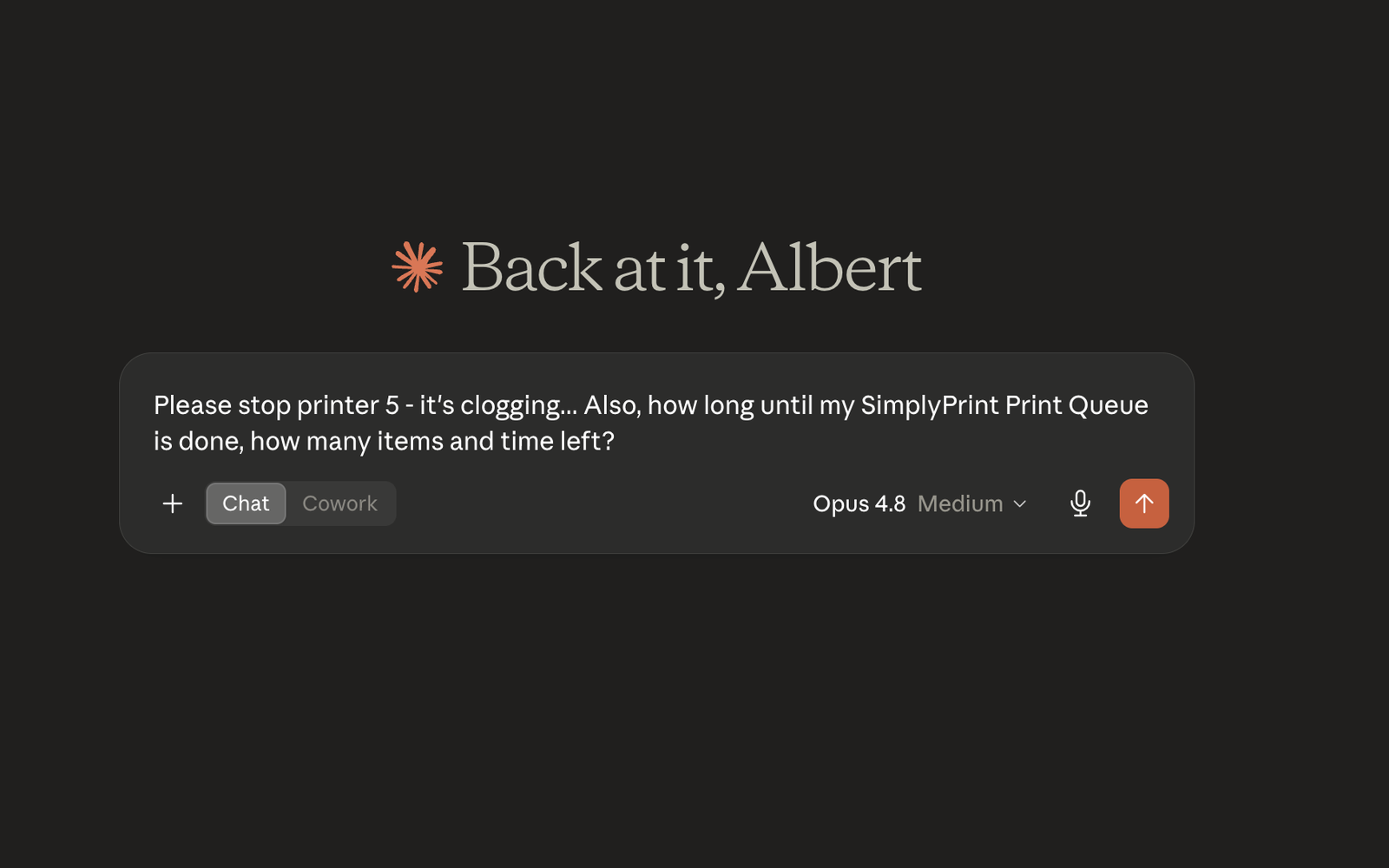
The connection can only do what you approved and only what your own account can do, and one click in your settings unplugs it again. It's all the same REST API, webhooks and per-user permissions as the rest of SimplyPrint, so developers can dig into the plumbing while everyone else stays in the drag-and-drop editor.
Automation is included from the Pro plan and up. It rides your API access, so there's no separate automation fee.
Thanks to everyone who suggested this! (You can read the full setup steps in our integrations guide and the AI assistant walkthrough.)
Snapmaker U1: now via the SimplyPrint Client
We've supported the Snapmaker U1 for a while, but you can now connect it through the SimplyPrint Client for a much more native integration. That means proper multi-material sync and mapping: you can choose which tool and color prints what, exactly like you already can with the Bambu Lab AMS and other multi-material systems. No extra hardware, no custom firmware, no Raspberry Pi in the middle.
Already running a U1 through the old method? Switching over takes a minute:
- Open the printer in SimplyPrint, click Delete, then Remove connection
- Update your SimplyPrint Client to the latest version
- Add the U1 again as a new connection through the Client
That's it. Once it reconnects, you get the multi-material mapping and the tighter integration automatically.
More in this release
A grab-bag of smaller features that landed alongside the headliners:
- ✨ Set temperatures over the API - a new action (and MCP tool) that sets nozzle, bed and chamber targets on one or more printers. Unlike sending raw G-code, it works mid-print and is clamped to each model's safe maximum, so you can drop a target on a hot day from a script. Suggested by the community.
- ✨ Multiple working-hour ranges per day - model split shifts and lunch breaks with more than one range per day, with per-day overrides. Suggested by the community.
- ✨ TigerTag NFC filament - our 9th NFC filament standard, so you can read and write TigerTag tags to identify spools automatically.
- ✨ Email columns in Print History exports - optionally add user, started-by and queued-item email columns to your CSV exports. They're off by default, and your column choice is remembered per export. Suggested by the community.
- ✨ New build plates - BIQU CryoGrip Pro Frostbite and Glacier for Creality machines. Suggested by the community.
- ✨ Bulk-delete done queue items and cleaner empty-queue handling, plus new "when slots are scarce, prioritize" options for the queue to-do list.
- 🐛 Fixes across the board: 1-click print on uncleared beds, multi-material spool swatches at print start, add-to-queue modal hangs, Bambu stale-spool replacement, AutoPrint showing "infinite" as a number, and Danish school (UniLogin) sign-in after a certificate rotation.
Since our last post
A couple of things shipped just after our Print Queue v2 post that are worth a mention if you missed them:
- ✨ FreeCAD integration - a SimplyPrint add-on and workbench for FreeCAD with one-click "Send to SimplyPrint", joining Blender, Fusion 360 and SketchUp in the CAD family: https://simplyprint.io/integrations/freecad
- ✨ Elegoo Centauri 2 support + NFC filament - read and write Elegoo NFC tags for the Canvas and Centauri series.
You asked, we built
A lot of this came straight from your suggestions. Thank you, seriously, it's the best signal we have:
- Zapier integration (#379)
- Temperature management via the API (#793)
- Multiple working-hour ranges per day (#778)
- Email as a column in Print History (#786)
- BIQU CryoGrip build plates (#789)
Got an idea for what we should build next? Drop it on the suggestion board.
Changelog
For the full list of changes, check out our public changelog:
That's it for this one. Go build yourself a dashboard, wire up an automation or two, and let an AI assistant handle the boring parts.
- Albert @ SimplyPrint