

Hey SimplyPrint'ers! 👋
We've been teasing this one for a while, and it's finally here - Printer Maintenance is now live in SimplyPrint. This is one of the biggest features we've ever shipped, and we're really proud of how it turned out.
If you're running a fleet of printers - whether that's a print farm, a school lab, or a makerspace - you know the pain. Nozzles wear out, belts stretch, beds need cleaning, and keeping track of what was done on which printer and when? That's where things fall apart. A clogged nozzle takes a printer offline for a day. A loose belt causes a string of failed prints before anyone figures out what's going on.
This was one of our most requested features - 78 of you upvoted it on our suggestion board. And we didn't build it in a vacuum. Over the past months, we've worked closely with more than 10 print farms who gave us hands-on feedback, tested early builds, and helped shape every part of the system. Several of them joined our Discord Print Farm Townhall meetings where we walked through designs, debated workflows, and iterated together. That feedback made this feature so much better than what we could have built on our own. Thank you.
We built SimplyPrint's 3D printer maintenance system to fix all of that. Define your procedures once, automate when they happen, track everything, and never wonder "when was the last time someone serviced that printer?" again.
For a full walkthrough of everything, check out our maintenance helpdesk guide or jump straight into your panel: simplyprint.io/panel/maintenance.
A full 3D printer maintenance system, built into SimplyPrint
This isn't a simple checklist bolted onto the side. It's a complete 3D printer maintenance management system with six interconnected parts, all accessible from the new Maintenance page in your panel.
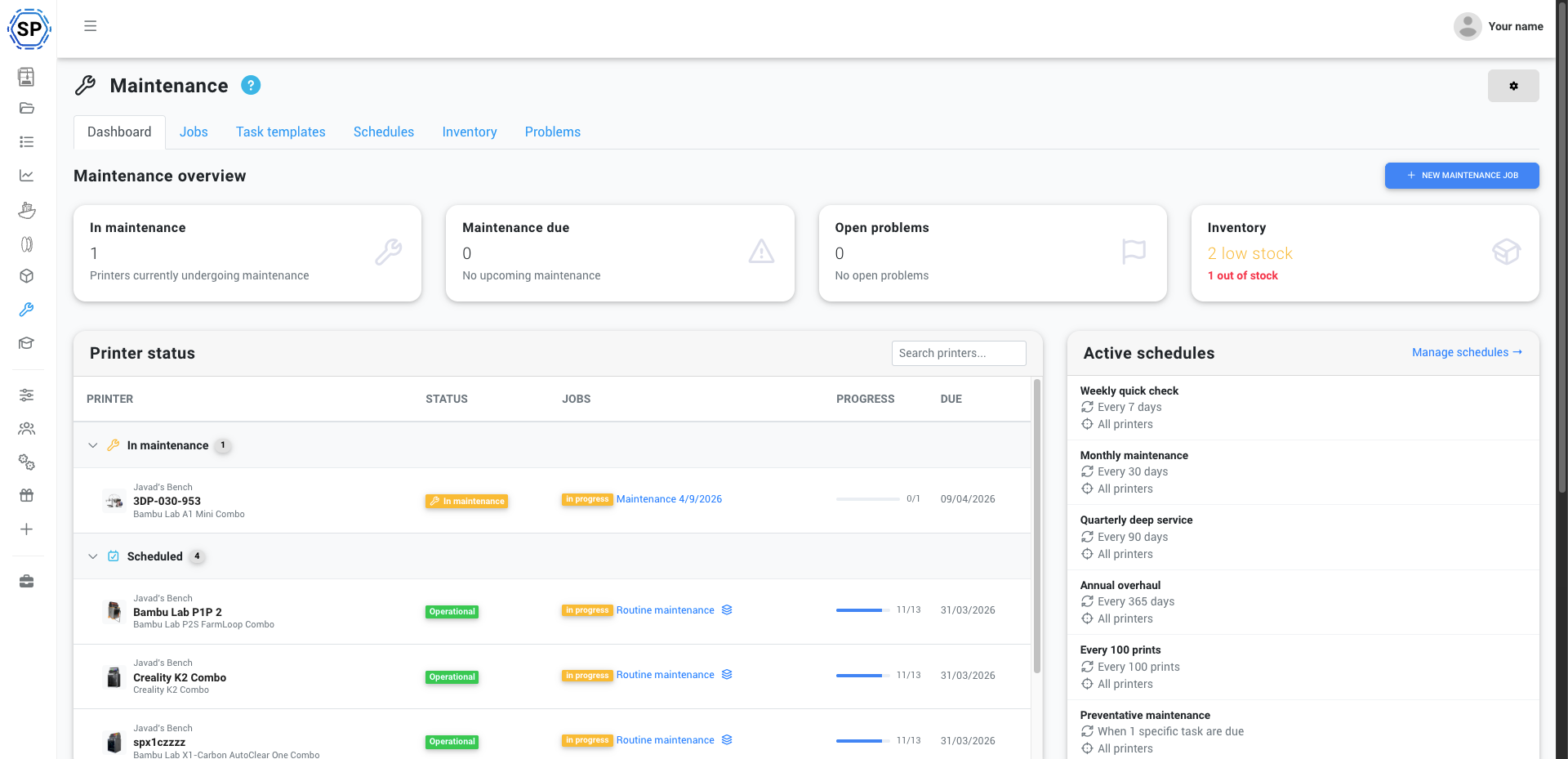
The dashboard is your starting point. It gives you an instant overview of your fleet's health - how many printers are in maintenance, what jobs are due, any open problems, and your spare parts inventory status. Printers are grouped by maintenance state so you can see at a glance which ones need attention.
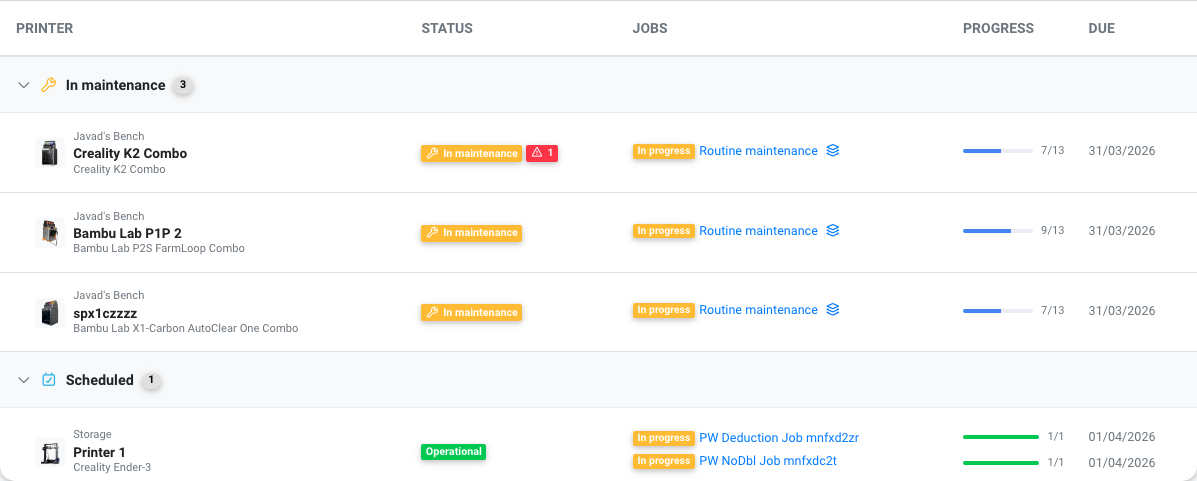
Maintenance jobs
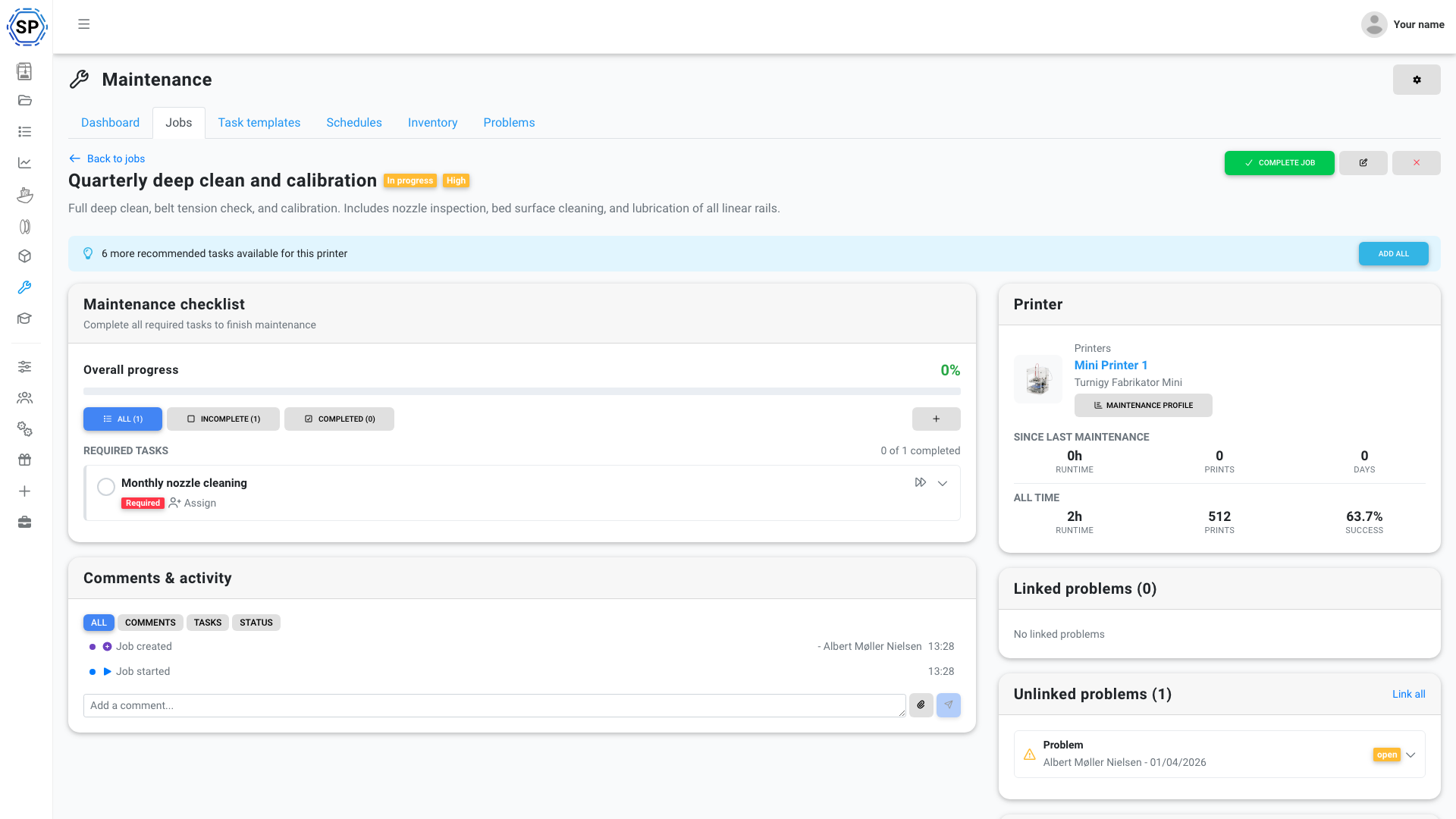
Jobs are the core of the system. Think of them as work orders - each job is tied to a printer, has a priority, and a checklist of tasks that tracks progress from start to finish.
Each task in a job comes with everything the person doing the work needs: a description, step-by-step instructions, reference links, embedded YouTube videos, and even links to SimplyPrint Academy courses. If you hire a new technician or onboard student workers, they can pick up a maintenance job and follow along without anyone having to explain it in person. The default templates we ship are already written this way - detailed, practical, and ready to use.
- ✨ Simple lifecycle - Scheduled, in progress, completed (or cancelled). Start when you're ready, complete when you're done
- ✨ G-code snippets and tool actions - Tasks aren't just checklists. Some tasks can trigger actions on the printer directly: run bed leveling, start a filament change, preheat to a specific temperature, run z-offset calibration, or send custom G-code. You can save reusable G-code snippets and attach them to tasks, so a "purge and prime nozzle" task can actually send the G-code to do it. The manual work and the automated steps live in one workflow
- ✨ Maintenance mode - Toggle "puts printer in maintenance" and the printer is automatically taken out of rotation. AutoPrint skips it, 1-Click Print skips it, the queue won't match to it. No more accidentally sending a print to a half-disassembled machine
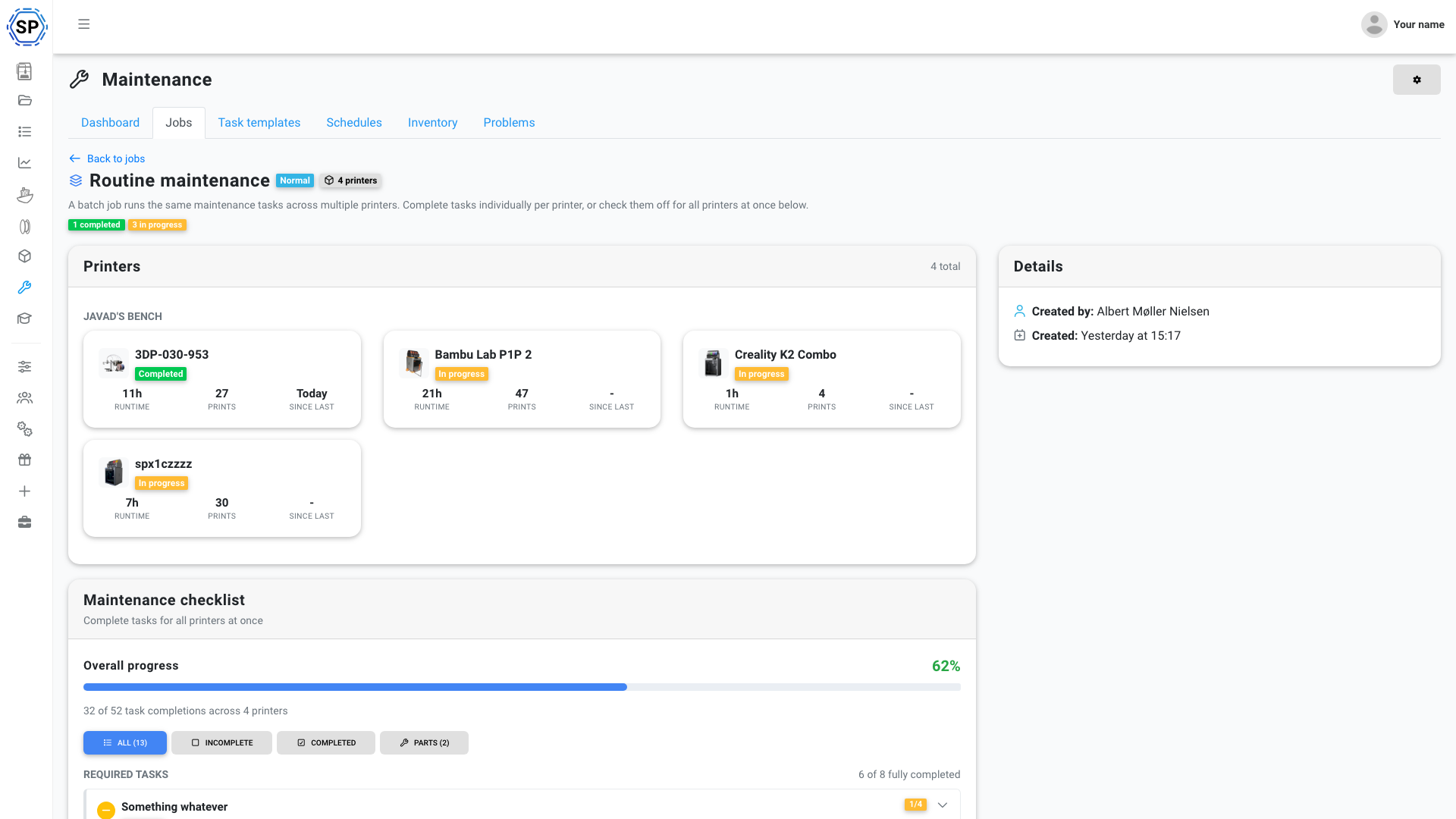
- ✨ Batch jobs - Need to do the same maintenance across 10 printers? Select them all and create one batch. Complete tasks across all printers at once or work through them individually
- ✨ Comments and activity log - Leave notes, attach photos of worn parts, and see a full timeline of everything that happened on a job
Learn more about maintenance jobs
Task templates
Templates are your maintenance recipes. Define a procedure once - "clean print bed", "replace nozzle", "check belt tension" - and reuse it across any number of jobs and printers. When a job is created, the system pulls in the right templates automatically based on their triggers - so a job for a printer that's hit 500 print hours gets different tasks than one that's only been running for 50.
- ✨ Built to train your team - Each template has a description, detailed instructions, reference URLs, embedded YouTube tutorials, and links to SimplyPrint Academy courses. Write the procedure once, and anyone on your team can follow it - new hires, student workers, volunteers. No shadowing required
- ✨ Categories - Cleaning, lubrication, replacement, calibration, inspection, firmware, and more
- ✨ Spare part requirements - Link parts from your inventory so they're automatically deducted when a task is completed
- ✨ Smart triggers - Each template has its own trigger that determines when it becomes "due" for a given printer: by time interval (every 30 days), print hours (every 200h), filament consumption (every 2kg), failure count, or reported problems. The system tracks each printer independently - so a busy printer gets flagged for nozzle inspection while a lightly used one doesn't. When a schedule fires, it checks which templates are actually due and only includes those, meaning every printer gets a tailored job
- ✨ Scoped to your hardware - Limit templates to specific printer models, groups, or individual printers. A carbon rod cleaning task for your Bambu Lab X1s doesn't need to show up on your Prusa MK4s
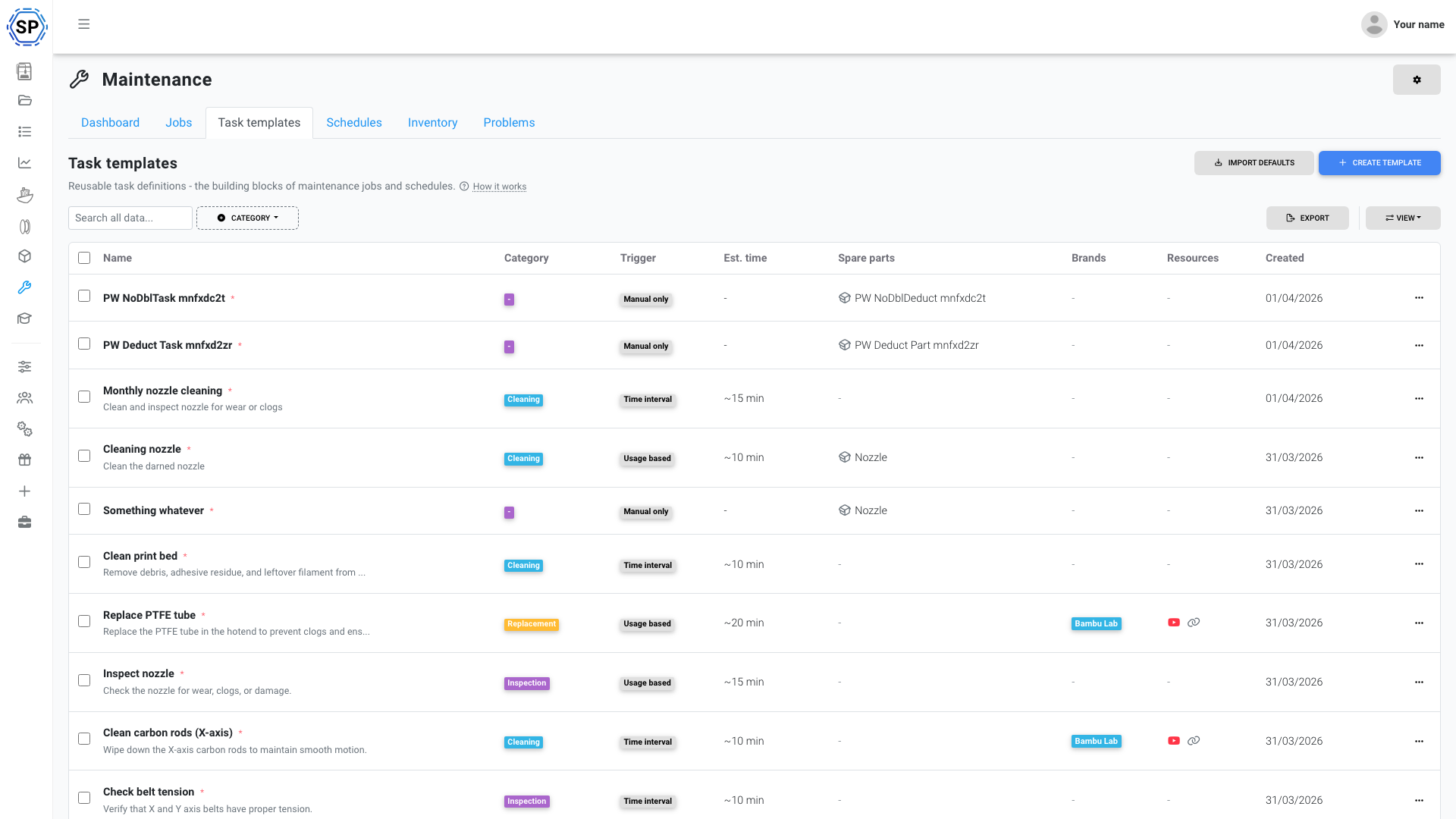
Ready-made templates for your printers
We wanted to make getting started as easy as possible. So we built a library of brand-specific default templates you can import with one click - complete with step-by-step instructions, recommended intervals, and links to official manufacturer documentation.
We ship templates for:
- ✨ Bambu Lab - 20+ templates covering the X1 series, P1 series, A1 series, P2S, and H2 series. Model-specific procedures like cleaning carbon rods (X1/P1), lubricating guide rails (A1), full calibration routines (P2S), cleaning enclosures and camera lenses (H2), plus universal tasks like PTFE tube replacement, extruder gear cleaning, cutter blade inspection, and AMS desiccant replacement. Each template links to the official Bambu Lab wiki
- ✨ Prusa - Templates for the MK4, MK3 series, Mini, XL, and Core One, with references to Prusa's knowledge base
- ✨ Creality - Templates for the K1 series, Ender-3 series, and more
- ✨ ELEGOO - Templates for the Neptune series
- ✨ Ultimaker - Templates for the S-series and Method series
- ✨ Generic FDM - 12 universal templates that work on any printer: bed cleaning, nozzle inspection, belt checks, rail lubrication, fan cleaning, PEI deep cleaning, and more
Import the ones that match your fleet, tweak them if you want, and you're good to go. No need to write procedures from scratch.
Learn more about task templates
Automated schedules
This is where it gets really powerful. Schedules are automation rules that watch your printers and create maintenance jobs when conditions are met. Set them up once, and the system handles the rest.
Six trigger types let you match your maintenance cadence to how your printers actually get used:
- ✨ Time interval - Every X days (weekly check, monthly service, quarterly deep clean)
- ✨ Print hours - Based on actual printing time, with a smart prediction engine that creates jobs ahead of schedule
- ✨ Filament consumption - After X grams pushed through the extruder
- ✨ Print count - After X completed prints
- ✨ Failure count - When a printer starts failing prints, something's wrong. Catch it early
- ✨ Task threshold - The most advanced: the schedule watches your individual task triggers and creates a job when enough tasks are due, bundling them into one efficient maintenance session
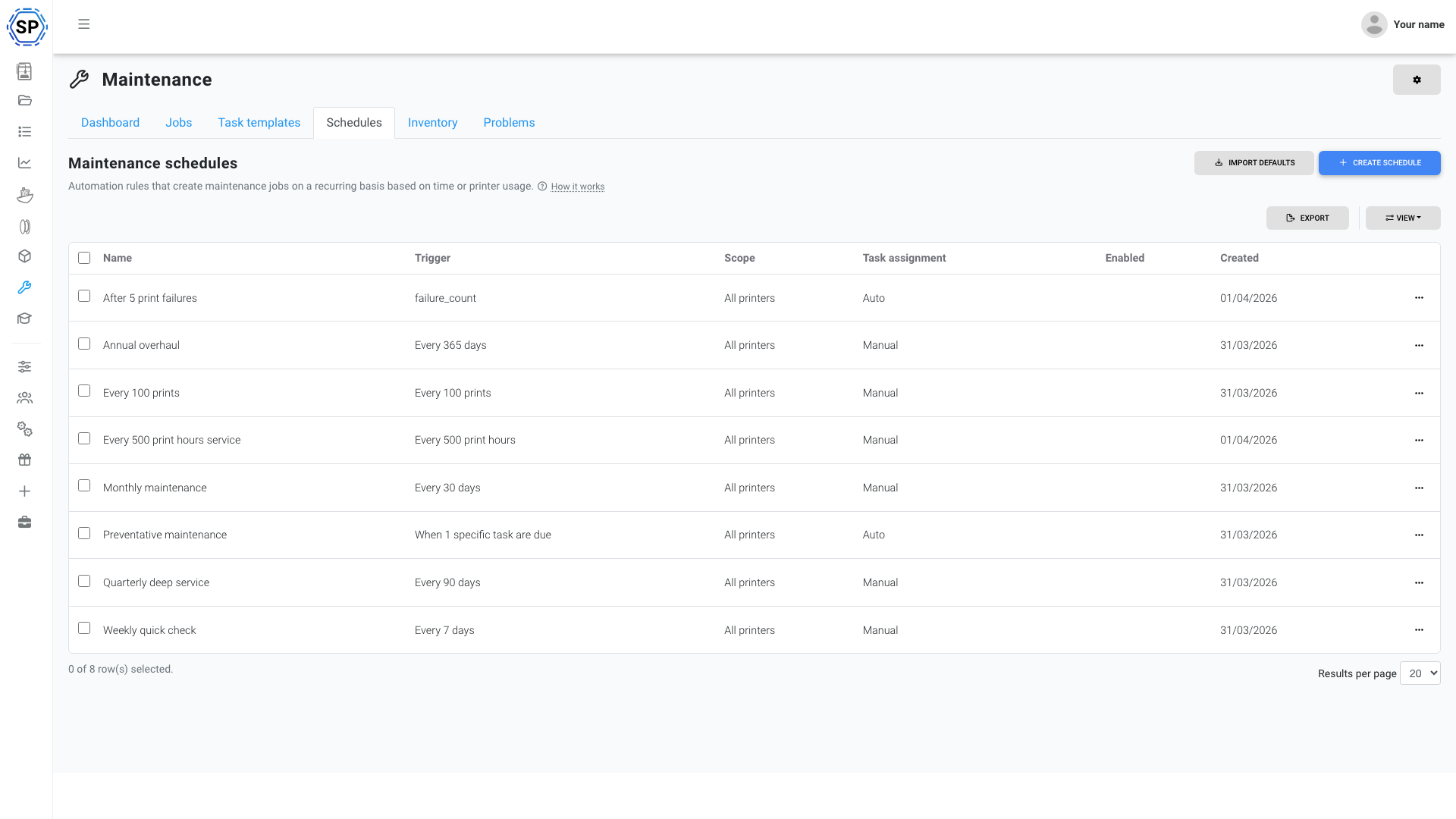
Schedules also support stagger limits so you don't pull half your fleet offline at once, advance notice so your team has time to plan, and minimum usage thresholds so idle printers don't get unnecessary maintenance. Smart task assignment modes (manual, auto, or hybrid) let you control exactly what goes into each auto-created job.
Just like templates, there's a built-in library of default schedules - weekly checks, monthly service, quarterly deep clean, and usage-based intervals. Import them and you've got a full maintenance program in minutes.
Learn more about automated schedules
Spare parts inventory
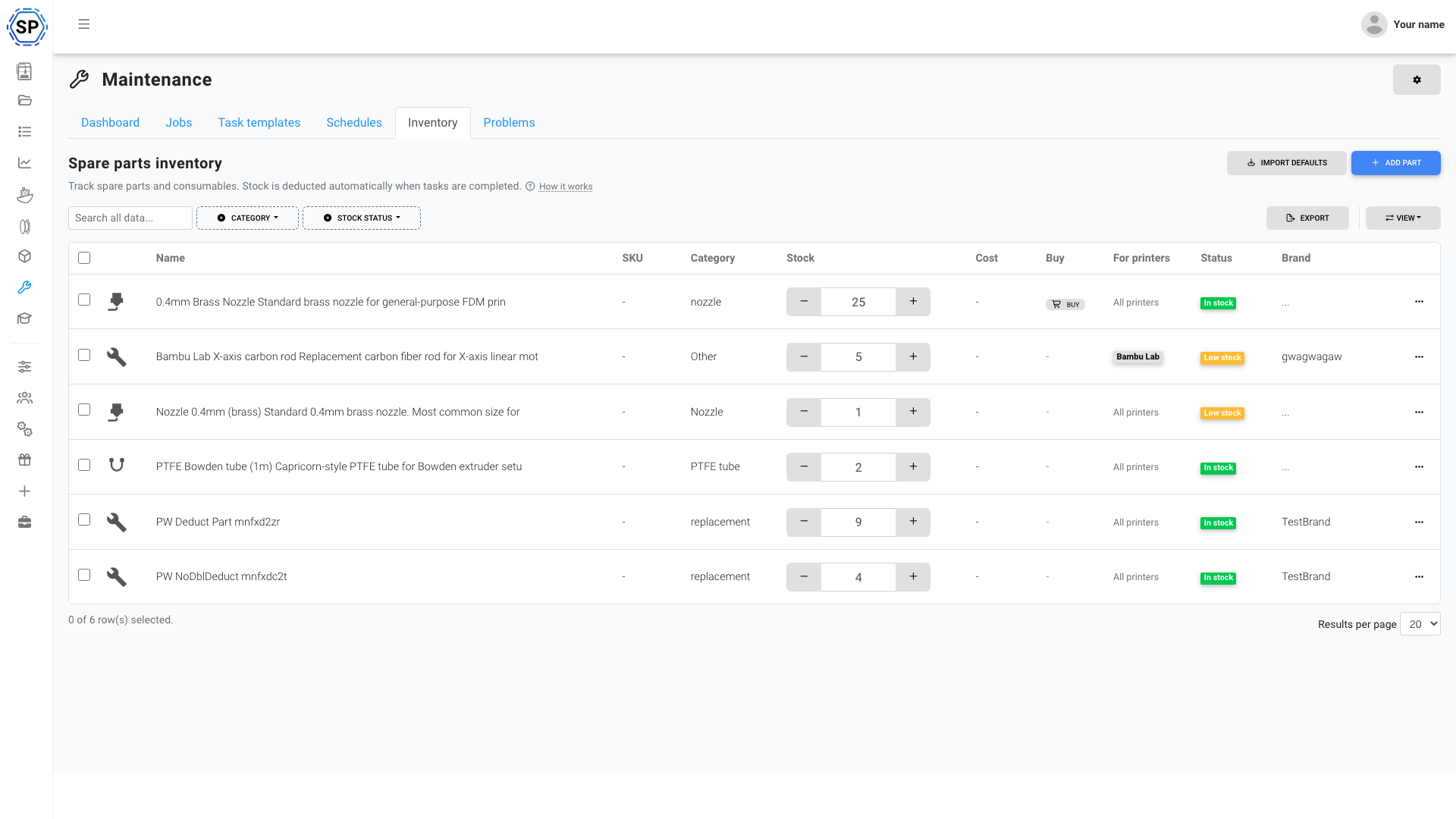
Track your nozzles, belts, bearings, PTFE tubes, and other consumables. Set stock quantities and reorder thresholds, and the system does the rest.
- ✨ Automatic deduction - When a maintenance task is completed and it requires a part, the part is automatically deducted from stock
- ✨ Low-stock alerts - Get notified when parts drop below your reorder threshold
- ✨ Stock status at a glance - Green (OK), yellow (low), red (out of stock) indicators on every part
- ✨ Supplier info - Add cost per unit and buy links for easy reordering
- ✨ Brand and model compatibility - Tag parts to specific printer brands or models
Learn more about spare parts inventory
Problem reporting
When someone on your team notices something wrong with a printer - weird noises, failed prints, a damaged bed - they can report it as a maintenance problem. Problems flow directly into the maintenance system.
- ✨ Report from anywhere - From the problems tab, from the printer control panel, or even during a print cancellation ("report as maintenance problem")
- ✨ Built-in problem types - Clogged nozzle, filament jam, layer shifting, warping, poor bed adhesion, and more. Plus custom types for your specific needs
- ✨ Link to jobs - Create a maintenance job directly from a problem report. The problem auto-resolves when the job is completed
- ✨ Spot patterns - Multiple "clogged nozzle" reports on the same printer? Time to investigate
This bridges the gap between the person who spots the issue and the person who fixes it. No more Slack messages that get lost, no more sticky notes on printers.
Learn more about problem reporting
Maintenance mode and printer integration
When a maintenance job is active with the "puts printer in maintenance" toggle on, the printer enters maintenance mode. This isn't just a label - it changes how the printer behaves across the entire platform:
- AutoPrint skips the printer entirely - no automatic prints get sent to it
- 1-Click Print excludes it from printer selection
- The print queue won't match items to the printer
- Printer cards show a wrench icon so everyone on your team knows at a glance
The printer is effectively taken out of rotation while someone is working on it. No more "who sent a print to the printer I'm cleaning?" moments. When the maintenance job is completed (or cancelled), the printer automatically goes back into rotation.
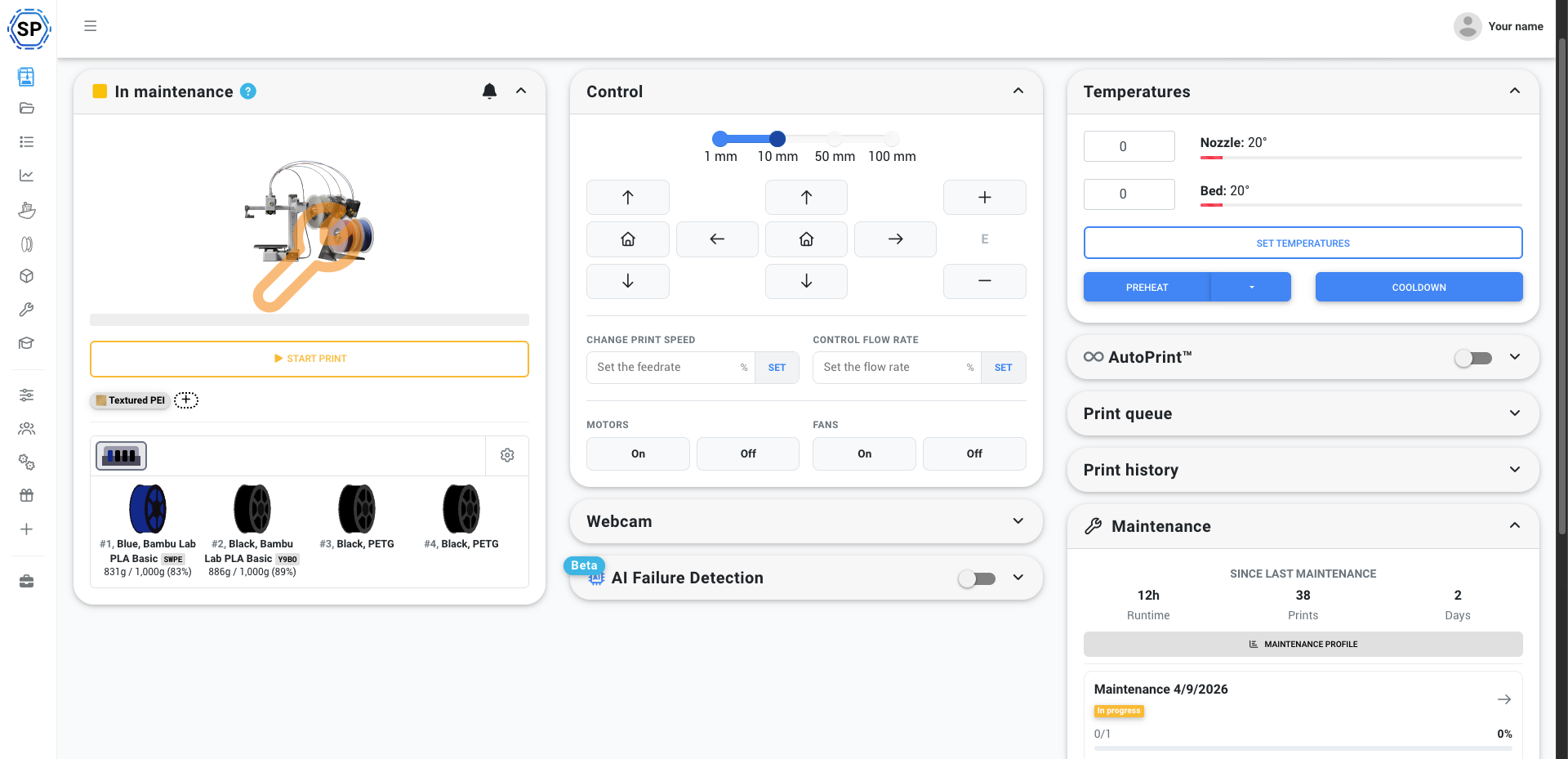
Maintenance right in the control panel
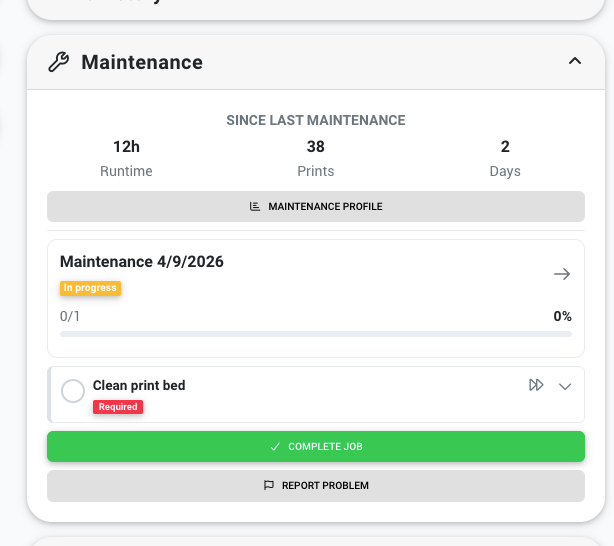
You don't have to leave the printer control panel to manage maintenance. Every printer has a maintenance widget that shows:
- Runtime, print count, and days since last maintenance - at a glance health stats for this specific printer
- Active job with progress bar - see what's being worked on and how far along it is
- Inline task checklist - check off tasks, expand for instructions, send G-code to the printer, and trigger tool actions - all without leaving the page
- Quick start - start a maintenance job instantly, or create a new job pre-filled with this printer
- Report problem - one click to report an issue directly from the printer you're looking at
Per-printer maintenance profiles
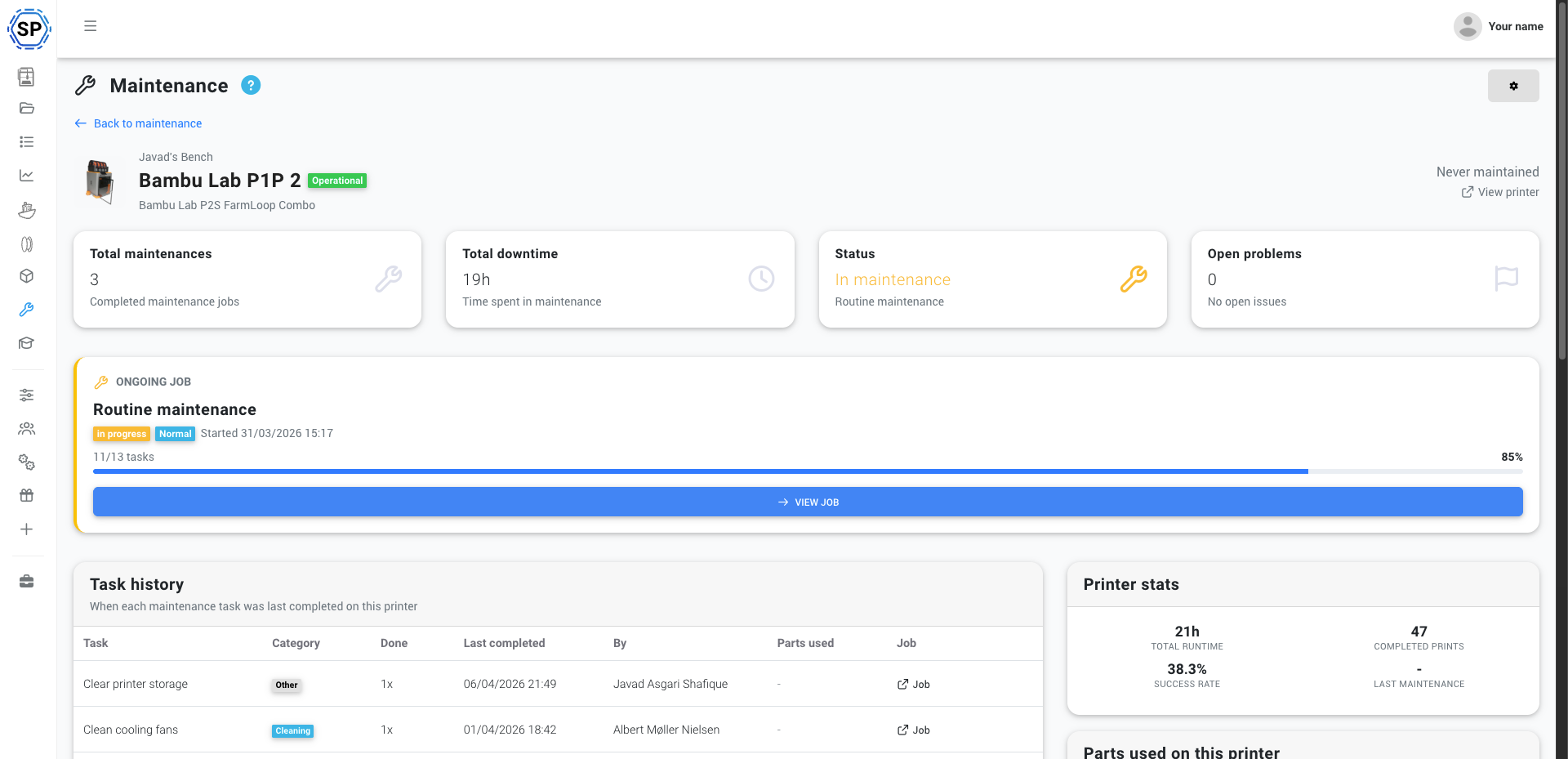
Each printer also has a maintenance profile - a complete history page showing total maintenances, total downtime, task completion history, parts consumed, and open problems. This is where you go to answer questions like "how many nozzle replacements has this printer had?" or "why does this machine keep having bed adhesion issues?"
And more integration
- Cancelling a print now offers the option to report a maintenance problem right then and there - connecting failed prints directly to your maintenance workflow
- Notifications for job assignments, due dates, overdue jobs, task assignments, and low stock - configurable per user
- 21 webhook events for everything from job creation to task completion to low stock alerts, so you can integrate with your own systems
- 5 granular permissions - view, manage, complete tasks, manage inventory, report problems - so you can give your team exactly the access they need
- Custom fields on jobs, tasks, problems, and spare parts - add any extra data your workflow needs
Who can use it?
The maintenance feature is available on Print Farm, Enterprise, and School plans. If you're on one of these plans, you'll see the new Maintenance section in your sidebar. Head to Settings > Maintenance to enable it and configure your preferences.
Not on one of these plans yet? Check out our pricing to find the right plan for your operation.
Note: the maintenance feature is currently available in the web panel only. Mobile app support is coming later.
Get started with 3D printer maintenance
We've made it easy to get up and running:
- Enable maintenance in Settings > Maintenance
- Import default templates and schedules with one click - we have ready-made ones for Bambu Lab, Prusa, Creality, ELEGOO, Ultimaker, and generic FDM printers
- Customize them to your needs - or build your own from scratch
- Add your spare parts to the inventory
- Let the system handle the rest
Head to simplyprint.io/panel/maintenance to get started, or read the full 3D printer maintenance guide for a complete walkthrough.
Join our Discord
This feature was shaped by real feedback from real farms and schools, and we want to keep that going. We're running Print Farm Townhall meetings on our Discord roughly every two months - open sessions where we walk through what's in development, hear what you need, and iterate together. The farms that joined these sessions for the maintenance feature had a real impact on what we shipped today.
If you're running a print farm or a school fleet, we'd love to have you in these sessions. Join our Discord and keep an eye on the announcements channel.
Thanks to the 78 of you who upvoted this on our suggestion board, to the 10+ print farms that tested and gave feedback, and to everyone who joined our Townhall sessions. You made this feature what it is.
Changelog
For the full list of changes, check out our public changelog:
- Albert @ SimplyPrint