

Hey SimplyPrint'ers! 👋
You walk into the farm in the morning. Forty machines humming, a handful sitting idle, and the same questions every single day: what do I load next, which bed do I clear first, and when is all of this actually going to be done?
Print Queue v2 answers all three. It draws your entire farm on a live timeline, tells you the exact spool swap that would unlock the most prints right now, and gives you a number you've never really had before: when your whole queue will be finished.
Every year we ask print farms which part of SimplyPrint they love the most, and every year the answer is the same: the print queue. A recent survey of our farms put the time it already saves them at around 18 hours a week. So when we set out to rebuild it, we weren't after a fresh coat of paint. We wanted the queue to stop being a list you manage and start being a tool that plans your day, what to load, when things finish, and which bed to clear next.
This is the biggest update the queue has ever had, and it closes 16 of your suggestions in one go, some of which have sat on our board for years.
Let's dig in.
Quick version
If you only have a minute:
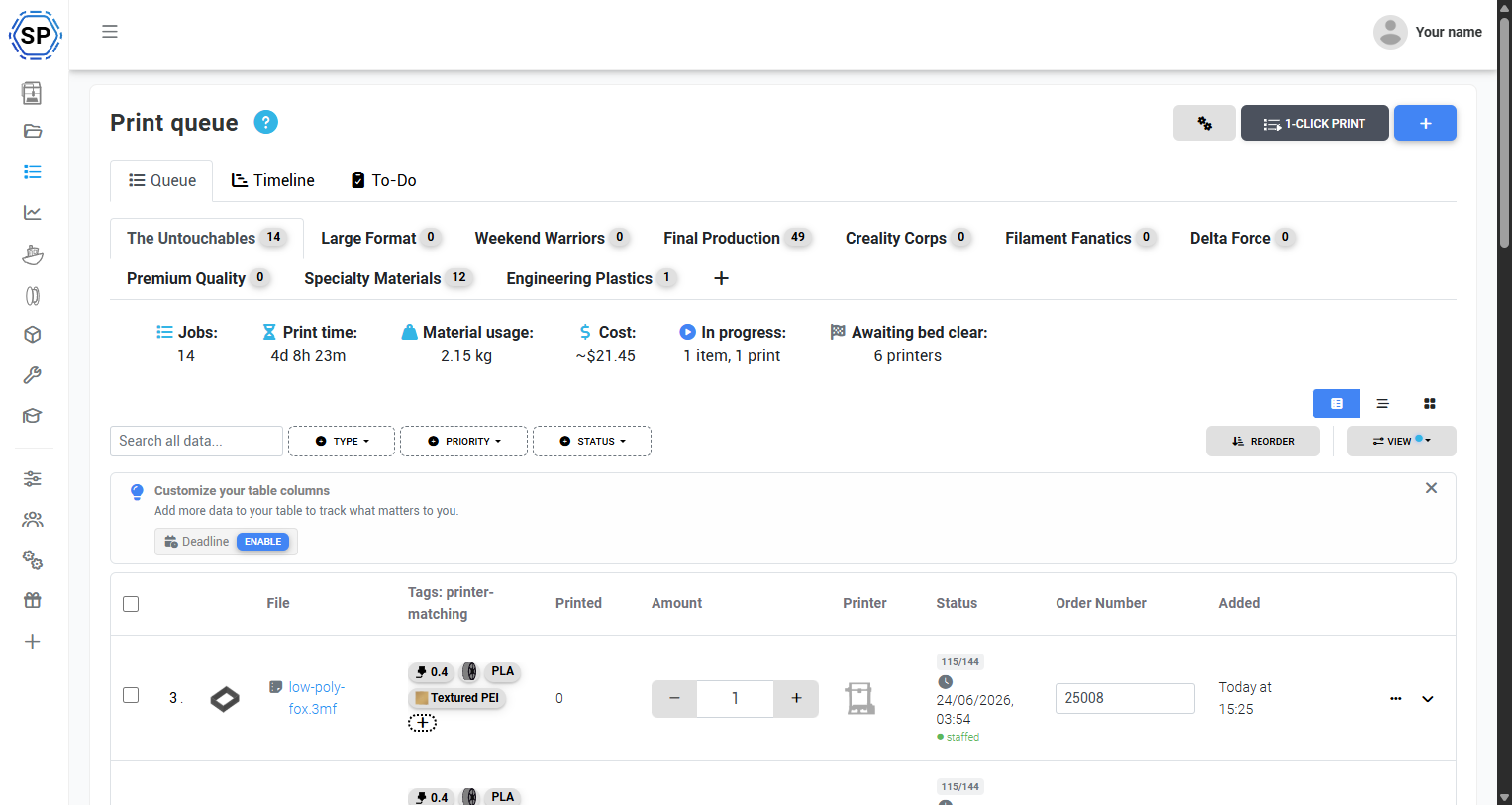
- ✨ Timeline view. A live Gantt chart of your whole farm. See what's printing, what's queued, and when it'll all be done.
- ✨ To-Do list. SimplyPrint reads your entire queue and tells you, in plain language, the one filament, nozzle, or bed change that would unlock the most prints right now.
- ✨ Working hours and ETAs. Tell us when your farm is staffed and roughly how long a bed clear takes, and we'll show you exactly when each item will actually finish.
- ✨ Deadlines. A real deadline field you can sort and plan by, with overdue and due-soon highlighting.
- ✨ New views, thumbnails, and a big item view. Table, list, and card views, file thumbnails everywhere, and a full overview of any item with comments and print history.
- ✨ More control per item. Pause, back burner, infinite prints, max concurrent printers, and keep-in-queue.
- ✨ Smarter 1-Click Print and AutoPrint. Round-robin scheduling, wear-spreading distribution, never-skip, and a built-in to-do nudge.
- ✨ Lights, fans, and chamber control are landing in the control panel, starting with Bambu Lab.
Read on for the good stuff.
See your whole farm on a timeline
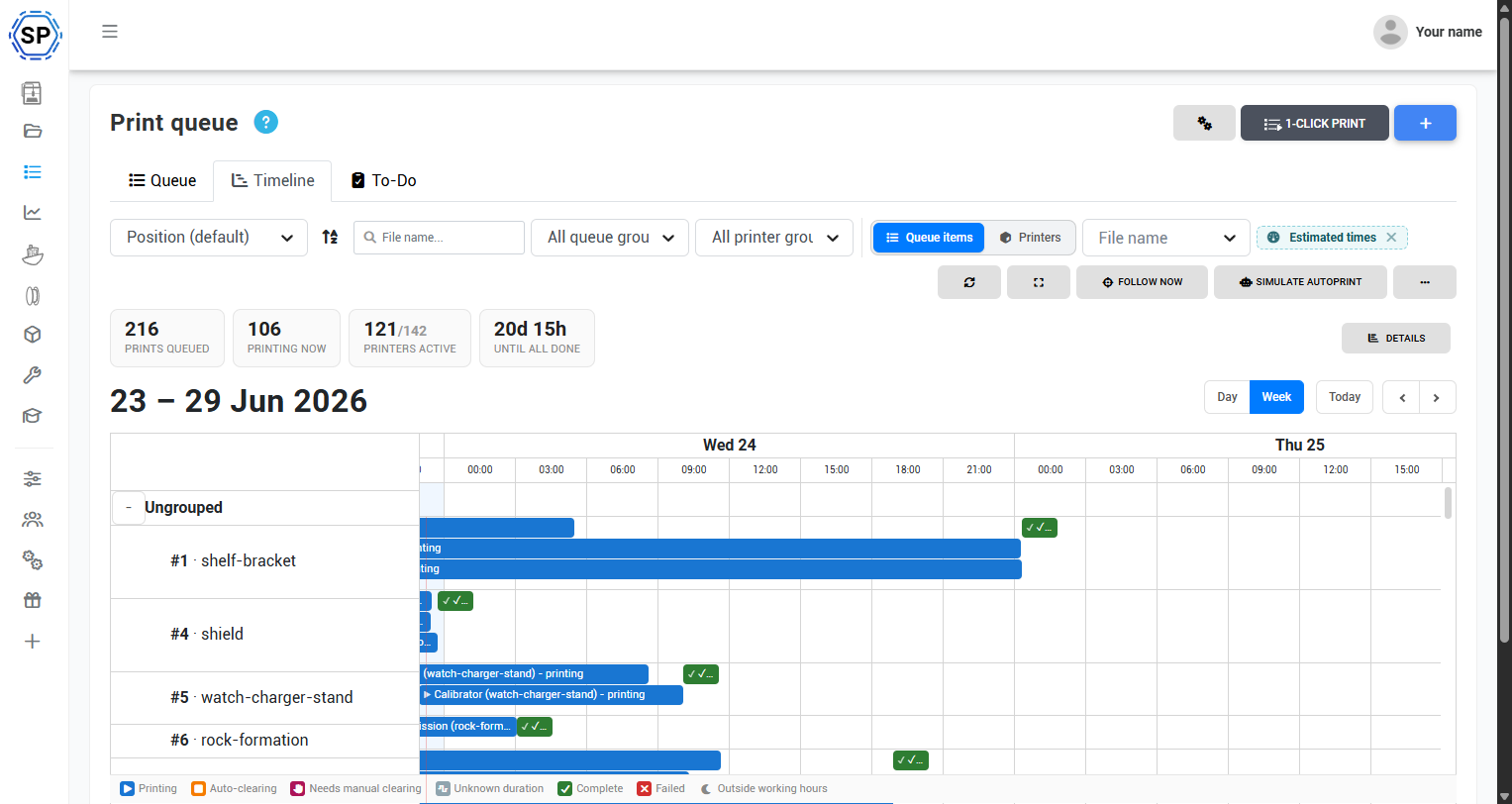
The big one. The new Timeline tab is a live Gantt chart of everything happening across your farm, every print that's running and every item that's queued, laid out on a real calendar.
You can look at it two ways. Queue-first shows each queue item and where its copies will run. Printers-first shows each printer as a row, so you can see exactly what each machine is doing now and next. Up top, you get the numbers that matter at a glance: how many prints are queued, how many are printing right now, how many printers are active, and our favourite, until all done, a real estimate of when the entire queue will be finished.
That estimate isn't a naive guess, either. It accounts for which printers can actually run each item, how long a bed clear takes, and the hours your farm is staffed, so it shades the time you're not open and never assumes someone's there at 3am to clear a bed and start the next print. Deadlines show up as markers, completed jobs stay visible so you can see history, and there's a fullscreen mode for the wall-mounted farm screen.
It closes our two most-requested timeline suggestions, a Gantt chart for the print farm view and a planning timetable for the queue.
Learn more in the print queue timeline guide.
The To-Do list: stop keeping it all in your head
You walk in. Printer 12 is sitting idle because it has black loaded and nothing in the queue wants black right now. A batch of 40 brackets can't start because no machine has the right nozzle on. A bed type doesn't match. A spool ran out. You used to learn all of this by walking the farm and squinting at spool holders, holding the whole thing in your head.
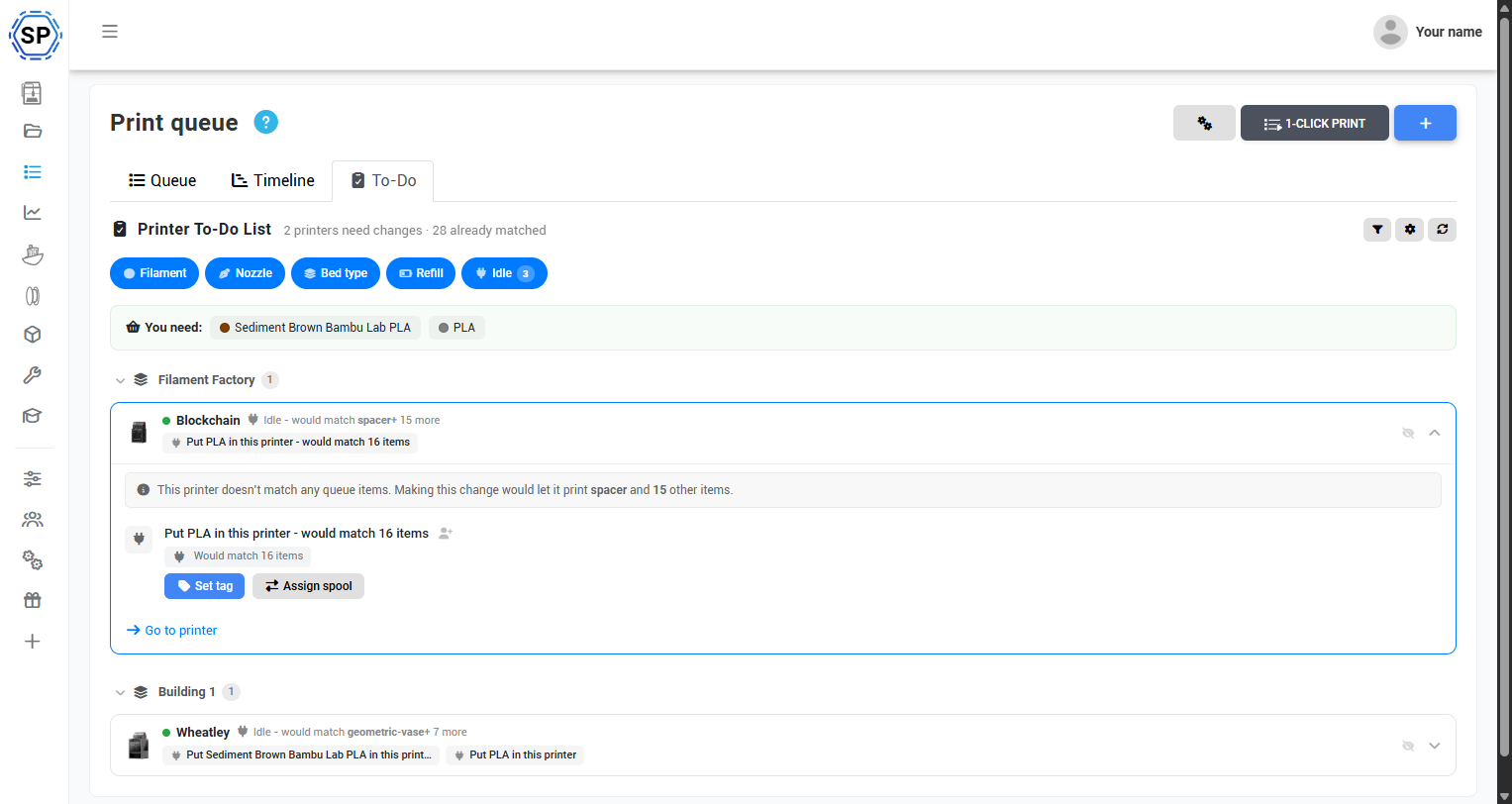
The To-Do list just tells you. Every time you open it, SimplyPrint walks your entire queue and works out the one question that actually matters: is there a better arrangement of prints than what's running, and if so, what's stopping it? Then it hands you the answer as a checklist. "This printer doesn't match any queue items. Put PLA in it and it can print 16 items." "You need: Sediment Brown Bambu Lab PLA." It groups the tasks by type, filament, nozzle, bed type, refill, and idle printers, and it shows you the highest-impact change first, the single spool swap that unlocks the most prints.
You don't have to be the one watching it, either. You can assign tasks to specific operators or set up auto-assign rules by task type and printer group. You can even have a daily digest sent at a set time, to a webhook or by email, so the morning's to-do list is waiting for whoever's on shift before they've even logged in.
Of everything in v2, this is the feature we think will change how a farm runs its day. We'll keep improving it, but the idea is simple: you shouldn't have to carry the whole farm in your head. We'll tell you what to change, and why.
Learn more in the to-do list guide.
Working hours and real finish times
A finish estimate is only useful if it's honest. A print that wraps at 2am isn't really done until someone's there at 8am to clear the bed and start the next one. So we built working hours.
In settings, you tell SimplyPrint which hours you're open each day, the hours your farm or lab is actually staffed and someone's around to clear beds. You can also tell us roughly how long a bed clear takes, for a single printer or your whole farm. With that, the queue shows you a genuine expected finish for every item, with a clear indicator of whether the farm is staffed at that moment or not.
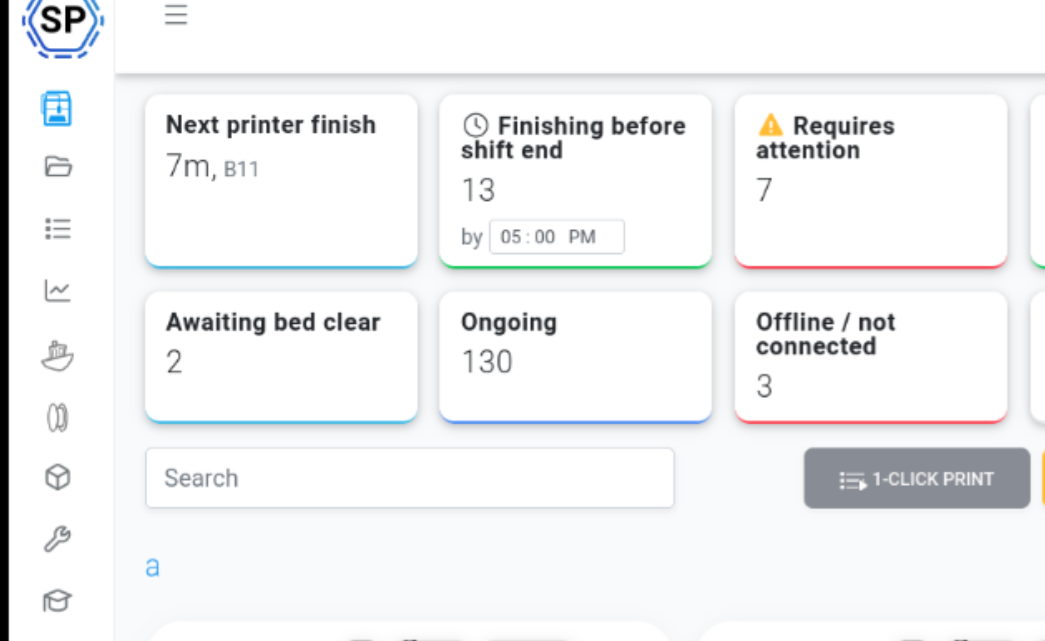
It also powers a couple of our favourite touches. There's a "Finishing before shift end" card on the printers page that shows how many printers will be done before the end of your working day, with a little clock you can change on the spot. Wondering whether staying 30 minutes late lets you clear another 20 beds? Now you can just check. (That one came straight from a print farm, shift calculation. Thanks!) And every queue group, and the queue as a whole, now shows a count of printers awaiting bed clear, which you can click to jump straight to the printers page filtered to exactly those machines. It's the fastest way to turn "the queue is stalled" into "here's the list of beds to clear."
Between them, these close an ETA column for the queue and showing when printers will be done at a given time.
Learn more in the working hours guide.
Deadlines, and re-planning in one click
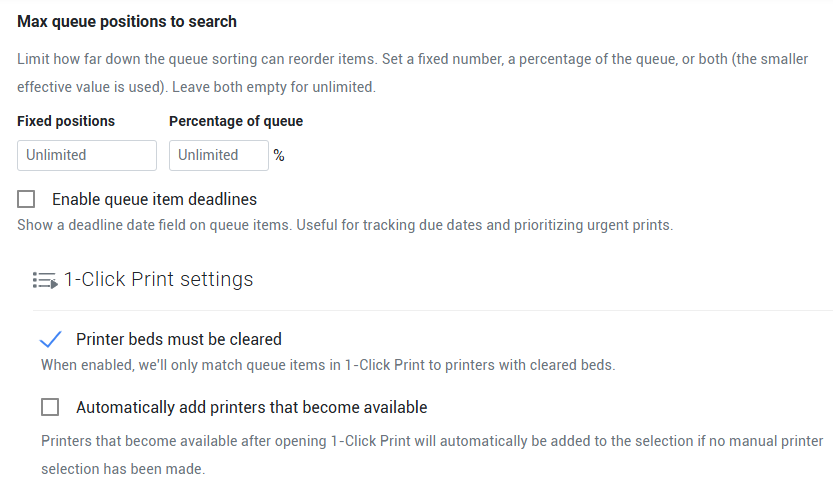
You can now add a deadline to any queue item. It's an optional field you switch on in settings, and once it's there you can sort and plan around it: overdue items get flagged, due-soon items get highlighted, and a single sort puts the urgent stuff at the top where it belongs.
If you run a service that promises turnaround times, you can lean on it harder: set a default deadline, require a deadline on every item, and even enforce a minimum lead time so nothing sneaks in due tomorrow when your queue is already full.
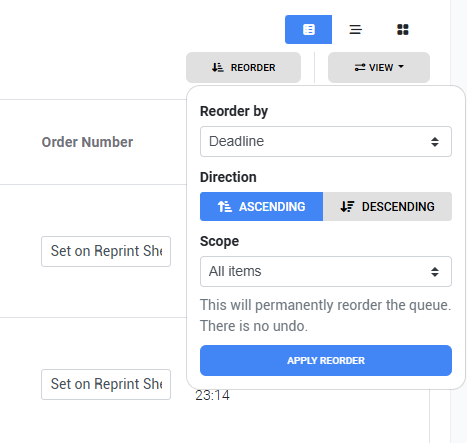
And when priorities shift, the new Reorder tool re-sorts your whole queue in one click, by deadline, print time, material, cost, amount, date added, or any custom field, ascending or descending, across all items or just a scope of them. Put everything overdue at the top, or front-load your cheapest, quickest wins.
The deadline field was our single most-upvoted queue suggestion, a deadline field for queue items. Thanks to everyone who pushed for it.
Learn more in the queue settings guide.
New views, thumbnails, and a queue inspector that works the other way
The classic table view isn't going anywhere, but it now has two siblings: a list view and a card view. Use the cards on a wall screen, the table when you're sorting 300 items, whatever suits the moment.
We've also put file thumbnails throughout, so you can see what each item actually is at a glance, in the queue, in the move dialog, and in the inspector. And next to each item you can now see how many printers it matches, using the same queue inspector we shipped a while back for the printers page.
That inspector now works from the item's side, too. Start from a print, not a printer, and ask: which machines can run this, and why can't this one? It'll tell you in plain terms, this printer's got the wrong material, that one's the wrong nozzle, which is exactly the information the To-Do list turns into a checklist. This closes the request for an "In progress" category in the queue and the long-standing ask for thumbnails on queue jobs.
Learn more in the queue inspector guide.
A real overview for every item
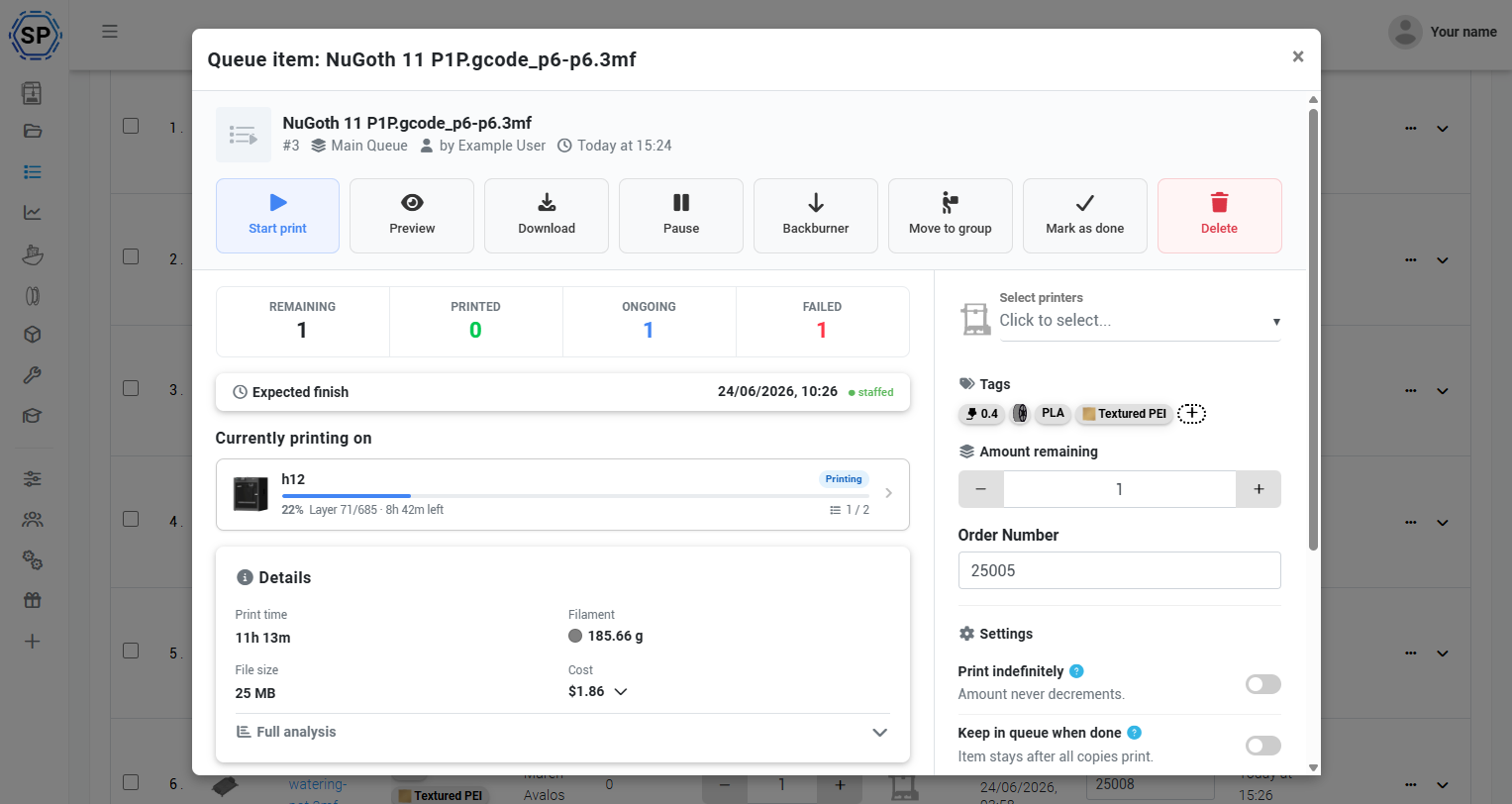
Click any queue item and you get a proper item view now, not just a row. It shows every printer currently printing that item, the expected finish, and the running tally of remaining, ongoing, printed, and failed copies. Below that: the full file details and G-code analysis, printer compatibility, and, new in this release, comments and the item's print history.
So if you want to leave a note for the next operator, flag a recurring issue with a model, or check how a part has performed across past runs, it's all in one place.
Learn more in the print queue guide.
More control over every item
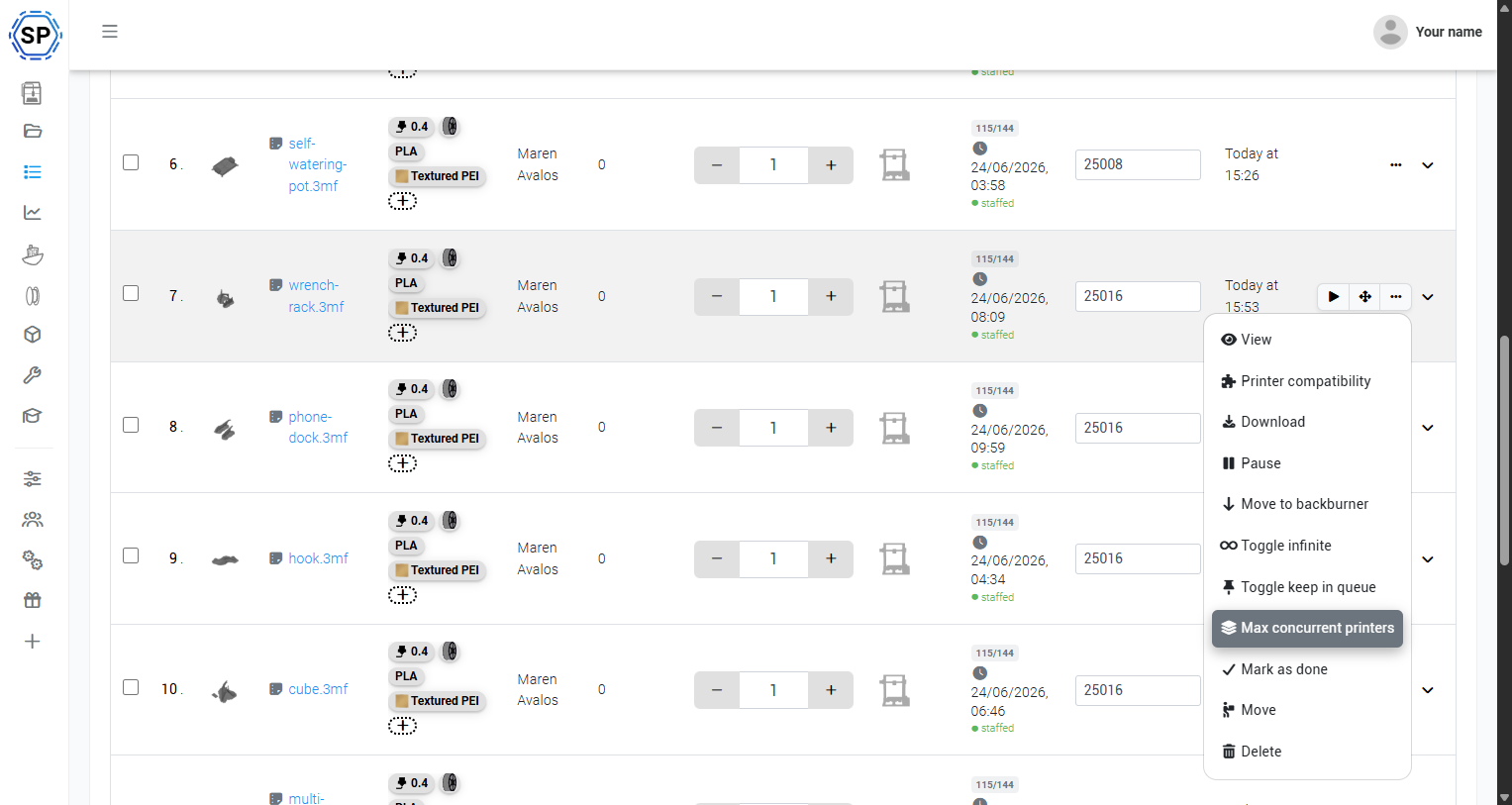
Queue items got a stack of new options, all aimed at the way farms actually work:
- ✨ Pause. Don't need any more of something right now, but don't want to delete it? Pause it. It stays put, it just won't get picked up.
- ✨ Back burner. A secondary, lower-priority lane. Items here sit out of the way until your main queue is handled, and there are settings to control whether AutoPrint and 1-Click Print ever touch them.
- ✨ Infinite items. Set an item to print forever. Its amount never decrements, so it's always available, perfect for that bracket or jig you can never have too many of.
- ✨ Max concurrent printers. Need a thousand of a part, or an endless supply? Cap it so it only ever occupies, say, three printers at once. You get a steady trickle without one item swallowing your whole farm.
- ✨ Keep in queue. Different from infinite. The item still has a finite amount and still counts down, but when it hits zero it stays in the queue instead of disappearing. Next time you need a batch, just set the number again. No re-adding.
Learn more in adding and managing queue items.
Smarter 1-Click Print and AutoPrint
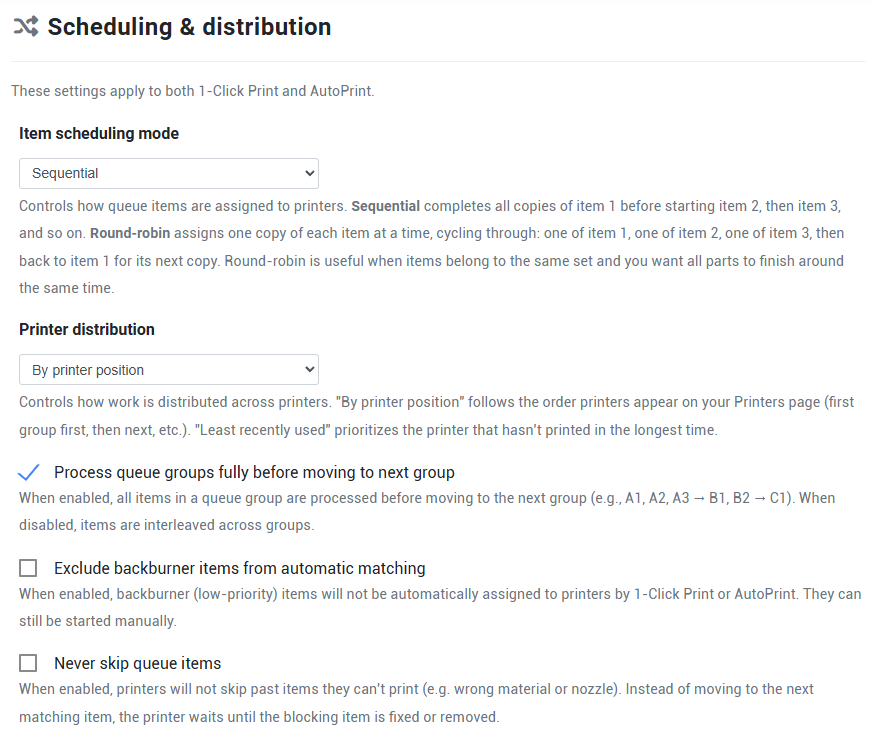
Behind the scenes, the engine that actually assigns prints to printers got a lot smarter, and a lot more configurable. These settings apply to both 1-Click Print and AutoPrint, so they behave consistently.
Scheduling mode. Choose sequential (finish all copies of item one, then move to item two) or round-robin (one copy of each item at a time, cycling through). Round-robin is great when a set of parts belongs together and you want them all finishing around the same time. (This closes alternating between queue items with AutoPrint.)
Printer distribution. Until now we always handed the best item to your "first" printer, which meant your top printer quietly did more work, and more wear, than the one at the bottom of the list. That's still the default, but you can now switch to randomized or least recently used to spread wear evenly across the farm. (A great suggestion from a community member, thank you.)
Never skip queue items. If you'd rather a printer wait for the right material than skip ahead to something it can print, turn this on. Paired with the To-Do list, it's a powerful combo: the printer holds, and the To-Do list tells you exactly what to load to get it going. And if you don't want it waiting forever, set max queue positions to search, a fixed number, a percentage of the queue, or both, so the queue can jump a few items but won't leap to the very bottom just to keep busy.
You can also exclude back-burner items from automatic matching entirely. And the 1-Click Print screen itself now shows the active matching criteria, printer utilization, sort warnings, a nudge about idle printers, and links straight to your queue settings and the timeline.
Learn more in the scheduling and distribution, 1-Click Print and AutoPrint guides.
Beyond the queue: lights, fans, and chamber control
We've also been busy on the hardware side, through the new SimplyPrint Client we introduced recently. The control panel can now drive a printer's lights, fans, and power supply, and gives you full chamber temperature monitoring and control, with per-material targets and the ability to import temperatures straight from your sliced file.
A few of the nice details: you get multiple fans now instead of just one, and on machines with an enclosure door, like the Bambu Lab H2D, you can see whether the door is open. This is live for Bambu Lab today, with Elegoo Centauri, Creality, and Anycubic next. It moves us a real step closer to supporting every peripheral on your printers.
This wave closes some of our highest-demand hardware suggestions: light control, chamber temperature, and fan speed.
New slicer engines
A smaller one for the slicing fans. We've added CrealityPrint as a cloud slicer engine, and a few weeks ago we quietly shipped ElegooSlicer too. That brings the lineup to five: Bambu Studio, PrusaSlicer, OrcaSlicer, CrealityPrint, and ElegooSlicer. We also updated OrcaSlicer and the other existing engines, and more are on the way.
You asked, we built
We say "you asked, we built" a lot, but this release really earns it. Print Queue v2 and the new hardware controls close 16 suggestions from our board, including some of the most-upvoted ones we've ever had:
- ✨ Light control
- ✨ Deadline field for queue items
- ✨ Thumbnails for jobs in the queue
- ✨ Chamber temperature
- ✨ Gantt chart for the print farm view
- ✨ Printers done at X time
- ✨ Fan speed control
- ✨ Planning timetable for the queue
- ✨ Print queue hold button
- ✨ More queue priorities
- ✨ Print farm shift calculation
- ✨ Back burner queue
- ✨ Alternate between queue items in AutoPrint
- ✨ Pause items in the queue
- ✨ ETA column for the print queue
- ✨ An "In progress" category
If you've got an idea for where the queue should go next, that's exactly where to put it. We do read every one.
More time at the printer, less time planning it
We're really proud of those 18 hours a week, and we're not done. The way we see it, every hour your team spends deciding what to print next, or walking the farm to work out which bed to clear, is an hour we'd rather hand back to you.
The new SimplyPrint Client brought a wave of printers onto the platform. Print Queue v2 goes after the planning, the part of running a farm that used to live entirely in someone's head. We want you spending less time managing the queue and more time pumping out great prints.
Learn more about the print queue
Want to go deeper on any of this? We've written up the whole queue in the help center. Start with the overview, then dive into whatever you're setting up:
- The print queue: how it all fits together
- The timeline (Gantt view)
- The to-do list
- Working hours and expected finish times
- Scheduling and printer distribution
- Queue settings: deadlines, columns and reordering
- 1-Click Print
- AutoPrint
- Queue groups
- Adding items: files, plates, custom fields and the API
- Why won't my printer print this item?
Changelog
For the full list of everything in this release, check out our public changelog:
This was a big one, and there may be a rough edge or two at this size. If you hit something, or you just want to tell us how it's going, come find us in our Discord. We'd genuinely love your feedback on this one.
We've been looking forward to sharing this for a long time. We hope it gives your team back the planning hours.
- Albert @ SimplyPrint